All Our Technology Tips
Audio Editor Audacity Great for Recording or Converting Audio
Audacity is a free, multi-track audio recorder and editor that runs on Windows, Mac OS X, GNU/Linux and other operating systems. You can use Audacity to record live audio through your computer microphone, an external mic, mixer or other line in input. For example, you can also use it to convert your records or cassette tapes into digital recordings. Depending on your sound card, Audacity can also capture streaming audio. It will let you edit WAV, AIFF,  MP2, MP3 and various other types of audio files. You can cut, copy, splice or mix sounds together and dub over existing tracks to create multi-track recordings. It will let you remove static, hiss, hum or other constant background noises. You can even change the speed or pitch of a recording and there are numerous built-in effects (echo, paulstretch (extreme stretch), phaser, reverb, reverse, wahwah and others). And lastly, you can export your recordings in many different file formats, including multiple files at once.
For basic features, it is fairly easy-to-use, especially if you have used other audio recording software. Some of the more advance features are a bit hidden, but there are online manuals, FAQs and other resources to help.
Download Audacity from the SourceForge.net site.
Posted on May 13th, 2014 - Editor: Dan Pinnington

—
Use High Dynamic Range or HDR for Better Pictures on Your Smartphone
Most smartphones now have an option called HDR, which is short for High Dynamic Range. When you take a picture in HDR, your smartphone camera actually shoots three pictures at three different exposures. Your phone then combines these photos to create one composite image that will be sharper and have more vivid colours. 
Try HDR when are taking pictures of landscapes or when you are shooting into the sun or another bright light source. Don’t use HDR for any pictures where there is motion as moving objects will be blurred, unless you want this effect, say for instance when you are taking pictures of a fountain or waterfall.
Posted on May 6th, 2014 - Editor: Dan Pinnington
—
Send Personalized Connection Invites for Better Uptake on Your LinkedIn Connection Requests
I’m just back from an ABA conference and am following up with some of the people I met. That might mean a phone call or an email with a link to an article, and in some cases, it means sending a LinkedIn connection request.
LinkedIn makes it very easy to send a connection invitation. After searching a name, a simple click on a button creates a standard message: “I’d like to add you to my professional network on LinkedIn” and a second click sends it on its way. 
While virtually effortless, these generic invites are far from ideal, and they are probably scaring some of your potential connections away. People receiving generic invites may not remember you and that will make them more likely to ignore the connection request.
To make it far more likely that the person will recognize you and accept your connection invite, take a few extra seconds to write a personalized invite note. For example:
Hi [first name]
Great to meet you at the ABA LPL Conference. I would like to add you to my LinkedIn network.
Dan
If it was someone you didn’t actually meet, try to make a connection in some other way: “I enjoyed your presentation and would like to add you to my professional network on LinkedIn” or “I see we share an interest in legal malpractice and would like to add you to my professional network on LinkedIn.”
Taking the time to send personalized connection invites will help you more grow your LinkedIn network.
Posted on April 29th, 2014 - Editor: Dan Pinnington
—
Clean Your Smartphone Lens for Sharper Pictures and Better Selfies
For most photographers, a clean and unscratched lens is pretty much an obsession – and it is something that also is critical for getting sharp pictures.
Many smartphone users take an opposite tact and would rarely, if ever, clean their  smartphone lenses. Needless the say, the design of most smartphones isn’t exactly conducive to having a clean lens. On many smartphones you are likely to touch the lens dozens of times a day in normal use.
Take a look at the lens on your smartphone, no doubt it will show a few finger smudges and perhaps even remnants of yesterday’s lunch. Even if your lens looks clean, consider gently cleaning it with a bit of warm water. You will likely find that your selfies look a bit sharper.
Posted on April 22nd, 2014 - Editor: Dan Pinnington
—
Filter Your Gmail Messages With Personalized Custom Email Addresses
Most people don’t realize  that you can use multiple address variations of your basic “[email protected]” Gmail address. Gmail lets you put a plus (“+”) sign and any combination of words or numbers after your name. For example, [email protected] can become [email protected] or [email protected].
All messages sent to any of these different address variations will end up on your inbox. The benefit of using address variations is that you can easily add a filter to label and/or archive messages in a particular way, depending on different address variations you have created. This can help you better manage the different types of messages coming into your inbox.
Posted on April 15th, 2014 - Editor: Dan Pinnington
—
A Better Microphone Can Really Improve Your Online Calls, Podcasts or Music Recordings
It is a safe bet that the microphone on your desktop or laptop probably makes you sound like you are under water or in the next room most of the time. If you make a lot of call calls on Skype, regularly participate in Hangouts, or record music or podcasts, a decent can make a world of difference. 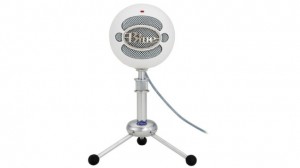
Lifehacker has a great post that reviews the five of the most popular mics in the $100 price range, as voted by readers of that blog. I and many of my colleagues use one or more of the mics mentioned in this post. If you are thinking about getting a better mic, I guarantee that you will find one that suits your needs among the five listed in the post.
Posted on April 8th, 2014 - Editor: Dan Pinnington
—
Be a YouTube Power User With These Keyboard Shortcuts
Most people wouldn’t think of using keyboard shortcuts as they watch videos on YouTube. However, there are actually several really helpful YouTube keyboard shortcuts that everyone should know and use.
First, while watching a video, remember that you can pause it by pressing the Spacebar once. Press the Spacebar again to make the video play.

Second, you can increase or decrease the volume by, respectively, pressing the Up or Down keys.
Third, the Left and Right arrows will let you, respectively, rewind or fast forward through a video.
Lastly, the Home key will take back to the beginning of a video, and the End key will jump you to the end.
One small pointer for making these keyboard shortcuts work – the YouTube video must have the focus, or in other words, be the active object on your screen. You make this happen by clicking once on the window that YouTube appears in.
Posted on April 1st, 2014 - Editor: Dan Pinnington
—
Computers Running Windows XP SP3 or Office 2003 Must Be Updated Immediately
I have , but nothing like a pending deadline to spur the procrastinators amongst us into action…
As of April 8, 2014, Microsoft will cease supporting Windows XP SP3 (Service Pack 3) and Office 2003 (SP3). After this date there will be no new security updates, non-security hotfixes, free or paid assisted support options or online technical content updates from Microsoft for either of these products. Your computer will still operate and Office 2003 programs will  still run, but if you continue to use Windows XP or Office 2003, you will be more vulnerable to security risks including harmful viruses, spyware, and other malicious software which can steal your personal information or destroy your data.
Microsoft Security Essentials, Microsoft’s anti-malware program, will not be available for download on Windows XP after April 8, 2014. But, if you already have Microsoft Security Essentials installed, you will continue to receive anti-malware signature updates through July 14, 2015. Similarly, Microsoft’s Malicious Software Removal Tool works in conjunction with the company’s anti-malware engines and signatures, and as such the removal tool will continue to be provided for Windows XP through July 14, 2015. Despite these continuing updates, PCs running Windows XP or Office 2003 after April 8, 2014 should not be considered to be properly protected from malware.
As support is ending as of April 8, 2014, you should immediately take steps to update all law firm and home computers running Windows XP SP3, and upgrade to a newer version of Office on any computer running Office 2003. You can download and run the to check if your current PC meets the system requirements for Windows 7 or 8.1. If your current PC meets the system requirements, you can buy Windows 7 Professional or Windows 8.1 Pro from a local retailer so you can upgrade your computer. If your PC does not meet system requirements, you will need to purchase a new computer.
Cyber criminals and hackers will specifically be targeting computers that are running XP and Office 2003. The time and expense you will incur if your systems are compromised will be far greater than the cost of purchasing a new computer or updating Office. Please immediately take steps to update any computers running Windows XP or Office 2003. The clock is ticking down.
Posted on March 25th, 2014 - Editor: Dan Pinnington
—
You Can Ignore “Low on Ink” Warnings on Inkjet Printers
All too frequently, we have all faced the frustrating “printer is low on ink” warning – usually when we are printing something urgent.
Do you need to immediately change 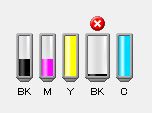
your cartridge? No. If, despite the low ink warning, you are still getting good quality print jobs (i.e., no fading or streaking), carry on printing. In most cases, you will be able to print a few, several or even more pages without problems. Change your cartridge only when the quality of your print jobs starts to decline.
Posted on March 18th, 2014 - Editor: Dan Pinnington
—
Don’t Waste Your Money on Expensive HDMI Cables – the Cheaper Ones Are Just Fine
After spending money to buy a new TV, you want to do everything you can to get the best possible picture. One of the tempting additional purchases – often pushed on you by the salesperson – is an expensive gold-plated HDMI cable. 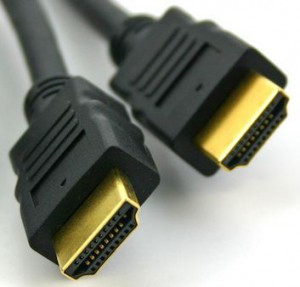 They come in large fancy packages and with big price tags – up to $100.
Are they worth it? No – save your hard-earned money for something else. You will get a decent picture with the basic $20 cable. For longer runs – 3 or more metres – best to stay away from the real cheap no-name cables, but you should be fine with a basic brand name cable.
Posted on March 11th, 2014 - Editor: Dan Pinnington
—