







Not sure if the experts will say this is a scientifically helpful idea for falling asleep (IMHO it seems better than just counting sheep), but sometimes you will want to listen to music as you (hopefully) fall asleep. 
But how do you set things up so you aren’t stuck listening to music all night? Just create a playlist for the songs you want to listen to – even if it is just one song. You get silence – and hopefully sleep – when the playlist is done. Here’s to falling asleep faster!
And a bonus tip: If you want a good mellow suggestion for your falling asleep playlist, consider the third movement from the Second Symphony by Russian composer Sergei Rachmaninoff. You might recognize it (if you were born before 1960) as the melody of “Never Gonna Fall in Love Again” by Eric Carmen (great live version with great hair in this video).
All Our Technology Tips
Create a Play List to Help Yourself Fall Asleep

How to Take a Screenshot of Your Desktop on a Mac or PC
Taking a screenshot of your PC desktop is easy – look for the “print screen” key on your keyboard. On PC keyboards it will usually have PrtScn, PRTSC or PRTSCN on it. Often, you will have to press it in combination with the SHIFT key. Doing this will place an image of the entire desktop in the clipboard – a quick paste of the clipboard contents (CTRL+V) gives you an image of your entire desktop.
Adding an ALT to the mix (e.g., SHIFT+ALT+PRTSC) will place an image of the active window (not the entire desktop) into the clipboard.
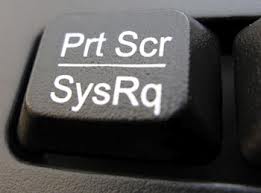
On a Mac, there are actually four easy ways to get screenshots of all or part of your desktop – but they aren’t as obvious as the ways to do it on a PC.
To take a screenshot of your entire desktop, press SHIFT+COMMAND+3 and an image of the screenshot will automatically appear in a file on your Mac’s desktop.
To copy an image of the entire desktop to your Mac’s clipboard, press CONTROL+SHIFT+ COMMAND+3. Then press the paste command (COMMAND+V) to paste an image of the desktop into a document.
You can also take a screenshot of just a portion of your Mac’s desktop by pressing SHIFT+COMMAND+4. This turns the pointer into a target. Next, click and hold, then drag the target pointer to create a box on your desktop. When you release, the area within your box will appear in an image file on your desktop.
Using CONTROL+SHIFT+COMMAND+4 works in a similar fashion, and pastes the selected area into the Mac’s clipboard. You can then paste the screenshot into a document by pressing the paste command.
Back Up Your Cloud: How to Download All Your Data
On at least a few previous occasions(here and here), I have written about the necessity of backing up your personal data, pictures and contacts, regardless of where they reside – your computer, your smartphone, your iPad or other tablet, your camera, etc. It is a fact of life that hard drives and other devices will fail – you want to have your data backed up so you don’t lose it.

But what about all that data and information you have created on the cloud? Think about all the information you have created in Facebook, LinkedIn, the various Google services, Evernote, Twitter and Yahoo. More than a few cloud services have lost or destroyed data, and some have gone out of business, usually with little or no notice. Your cloud data should be backed up too!
PC Magazine recently published an article that reviews the things you should think about when backing up your cloud data, and it contains specific instructions on downloading data from the cloud services mentioned above. If you use these cloud services, or others, avoid disappointment by taking steps to make sure your cloud data is properly backed up.
Use a Fill Flash for Better Pictures With Your Smartphone or DSLR
When you are in low light conditions, a flash can be essential for taking a picture. But, in some circumstances, a flash can also be helpful in broad daylight, especially for portraits.

When taking pictures while on auto-flash in the daylight, your flash may not trigger. Your smartphone or DSLR simply decides there is enough light and it doesn’t fire the flash. But even in the daytime, you can end up with a dark face if your subject is in front of a bright background, or have shadows on one side of a face if your main light source is coming from one side. Setting your smartphone or camera to fire the flash regardless of the ambient light can help light up a darkened face and/or eliminate shadows on your subject. This is call a “fill flash.”
While you only have the choice of on/off on your smartphone, but there will be tons of flash settings you can play with on a DSLR. Consider trying this trick next time you wanting a bit more light on your subject in a daytime picture. It can yield spectacular results, even on a smartphone.
Use the TAB Key to Move From Field to Field in an Online Form
If you buy something online, you will likely have to enter various details into a form of some sort (e.g., name, address, phone number, email, credit card  number, etc.). This can be a tad tedious if there are many fields on the form – you type a few characters, stop, reach for the mouse, then navigate to and click on the next field, go back to the keyboard, type a few more characters, then repeat the process again, and again… There is a better way to navigate through a form – and you don’t have to use your mouse.
The web-based forms on many websites will let you move from one form field to the next one by “tabbing” (i.e., by pressing the TAB key). So after filling out a field, you don’t have to use the mouse to move to click on the next field – just press the TAB key instead. If form was properly built, pressing TAB will move you through the fields of form in the order that makes the most logical sense for completing it. Typically, you can also move backwards using Shift+TAB. Note that the TAB key does the same thing on many other electronic forms.
Tabbing is not just a convenience; it is also an important accessibility feature, since it makes it possible to fill out a form without a mouse or other pointing device.
Keep the TAB key in mind the next time you are filling out an electronic or online form.
Put the Sun Behind You for Better Outdoor Pics With Your Mobile Phone
Unfortunately, the camera on your mobile phone – and even your more expensive DSLR camera – just don’t see things well quite as well as your eyes do. So, what can you do to get better outdoor pictures? 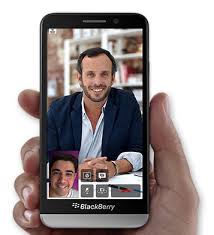 Getting more light on your subject by making sure the sun is behind you will greatly improve the quality of outdoor pictures. Of course, this doesn’t work for sunrises or sunsets, but by moving around a bit you can easily do this in many circumstances for outdoor pictures of people and other things.
How to Tell Which Side of the Car Your Gas Cap Is On
The location of the gas cap on any car you own or drive regularly is probably second nature to you. But when you drive a rental car into a gas station, how do you know which side the gas cap is on? Can you spot it in the side view mirrors? Probably not. Do you need to get out and walk around the car to spot it? Absolutely not.
If you look on the fuel gauge of most modern  vehicles, you will see a tiny fuel pump icon with a triangle on one side. That triangle points to the side of the car that has the gas cap.
Don’t Worry About Overcharging Your Mobile Device Batteries
Some people still worry about overcharging the batteries on their mobile devices. Those of us that have been around a bit longer will remember the days when you were supposed to fully charge and then fully discharge your batteries so they would maintain the ability to take and retain a full charge through many charging cycles. This was an issue that was necessitated by nickel-cadmium batteries, which are rarely used in modern devices. 
Lithium-ion batteries are now found in most modern smartphones, tablets, laptops and other mobile devices. Charging your lithium ion battery after a partial discharge is totally fine. In fact, you’re better off charging your device whenever possible rather than letting the battery go all the way down to zero as doing this will actually help preserve your overall battery life over time. Go for a full charge whenever you can!
Speech Recognition – It Really, Really Works
 Yes, I acknowledge that the Tuesday Technology Tip this is supposed to be a general bite-sized tip that is practical and easy to implement. However, when I came across this post from my good friend Jim Calloway today, I felt obligated to share it on SLAW Tips. Speech Recognition – It Really, Really Works was posted on the Oklahoma Bar Association’s Management Assistance Program page.
This post is very practical as it answers most of the common questions I get about what is available in speech recognition for different devices and platforms. It has tons of tips on making the most of DragonDictate NaturallySpeaking. If you want to try speech recognition this post will get you started. If you are already using it, you will find some great tips to make it work better for you. Thanks Jim!
Don’t Be Fooled by a Phishing Scam
Did you know that emails appearing to come from companies you trust and know may actually be from criminals trying to steal your money or identity? Because they are so successful at duping people, “phishing” emails have quickly become one of the most common and devastating scams on the Internet.
Phishing scams use spoofed (meaning faked or hoax) emails and websites to trick you into revealing your personal and financial information. By using the trusted brands and logos of online retailers, banks, or credit card companies, phishing scammers trick surprisingly large numbers of people. The phishing email directs users to visit a website where they are asked to confirm or update personal information such as: passwords; and credit card, social insurance and bank account numbers. In doing so, people are tricked into giving this information directly to cyber criminals, who, in turn, use it for identity theft, financial theft or other cybercrimes.
Cyber criminals do their best to make phishing messages look official and legitimate. They will mimic real communications from the company or entity they are supposedly from by using the same layout, fonts, wording, message footers and copyright notices, etc. as official messages. They will often include corporate logos and even one or more links to the alleged sender’s real website.
To make it more likely you will fall for the scam, phishing messages commonly involve urgent scenarios. They may suggest that you must reset your password because your account has been compromised by hackers or they may request that you login to your account to review an invoice or deal with an outstanding payment. Another common phishing scam is a call from someone claiming to be from Microsoft who will tell you your computer is infected and that you must go to a special website to download an update that will fix the problem. Phishing scams can also be a request to complete a survey or to give information to collect a prize you have won. They can also be requests for money supposedly from someone you know who is allegedly stuck in a foreign city after being mugged.
Many phishing messages will include a link or attachment that you are asked to click so you can update your information. After doing so, the webpage or attachment you will see (which will also have text and logos to make it look official) will prompt you to enter your name, account number, password and other personal information – thereby giving it to cyber criminals.
To make matters worse, clicking on links or attachments in phishing messages often causes malware to be downloaded to your computer as well. Could it happen to you? Would you fall for a phishing scam? Always remember that legitimate companies will never ask you to update your personal information via an email message. Don’t get tricked by phishing scams. See the “Could it happen to you?” column in LAWPRO Magazine to learn how to recognize and avoid phishing scams.


