







All Our Tips
Migrating From XP to Windows 8.1

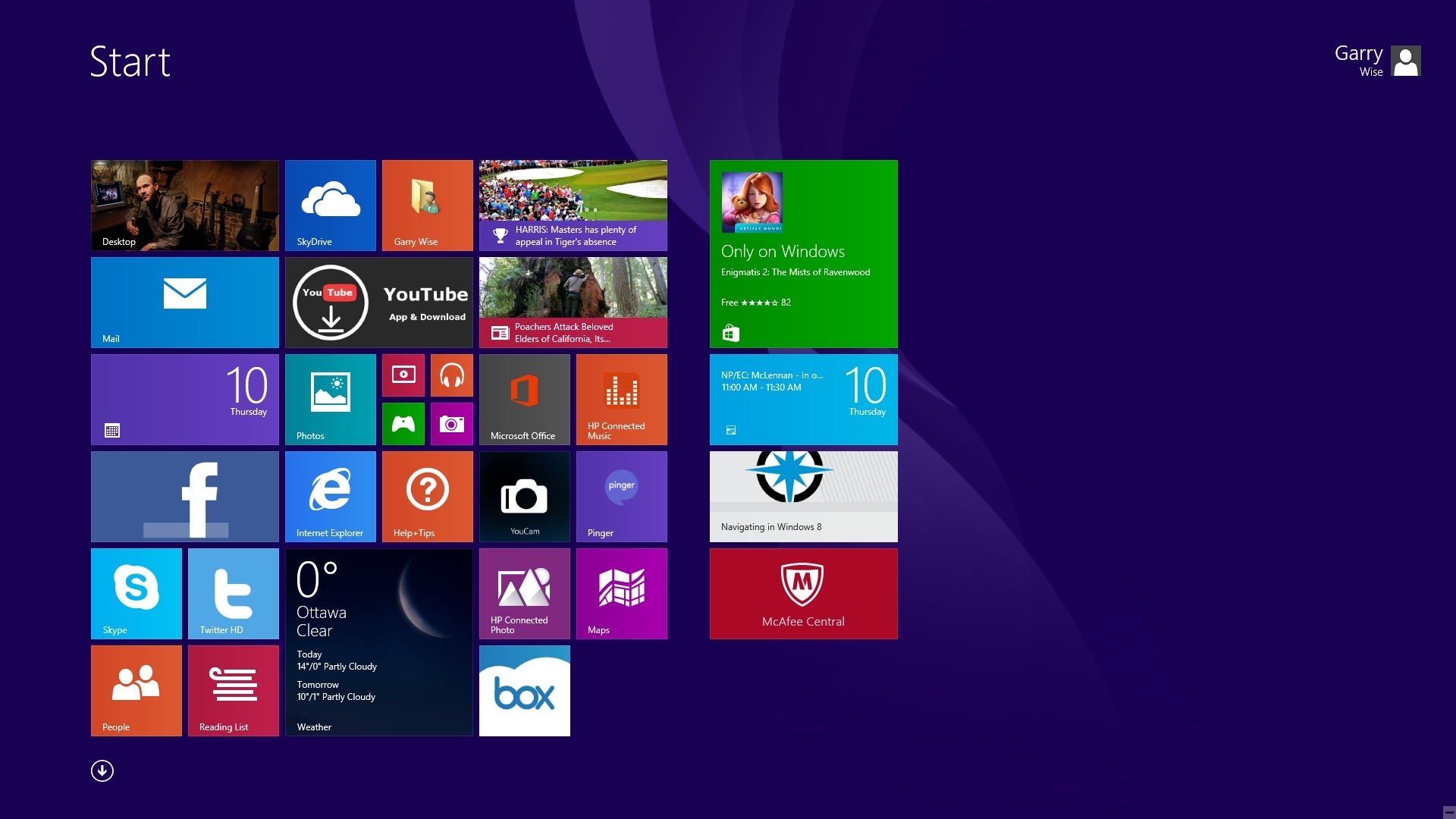
Windows 8.1 Start Screen
Amidst all the hype about this week’s t, I made the jump on the weekend to Windows 8.1 from the first of our remaining, four XP computers.
Overall, it was a pretty seamless and surprisingly anti-climatic event, particularly given my long avoidance of this change, buttressed as it has been by the many mixed reviews of the Windows 8 interface I’ve encountered online.
We have a number of Windows 7 computers in our office, all of which have performed admirably. It certainly would have been my initial preference to replace my remaining home and office XP computers with Windows 7, being the “devil I know.”
However, Windows 7 PC’s are no longer readily available at retail, and thus Windows 8, now upgraded to 8.1, was the obvious, easy alternative.
Windows 8.1 is really two, easily interchangeable interfaces in one.
The desktop interface borrows extensively from all predecessor Windows releases, and will provide familiar and mostly seamless continuity with all you have known before. With a few key exceptions, you won’t likely notice too much difference in the 8.1 desktop environment, whether you’re upgrading from XP, Vista or Windows 7.
The alternative, Start Screen interface attempts to replicate a tablet-like experience on your PC, particularly if you are using a touch screen. Rather than featuring shortcut icons that launch the familiar executable programs, it features clickable squares that open apps and features. Windows 8.1 apps, shortcuts and other destinations on the computer are easily pinned to the Start Screen, allowing you to fully customize your experience.
You will find a number of apps pre-installed, many of which you will eliminate immediately as unnecessary. The Windows store allows you to download from a vast array of existing apps to more fully personalize your selection.
Whether you will prefer to use the Facebook, Twitter, Mail and Calendar apps on 8.1, as opposed to accessing these services via your web browser, may be a matter of personal taste.
The bottom line is that the web browser versions of all these services remain full-featured, while their parallel apps contain streamlined and downsized versions. While it may make sense to use such apps on your smart phone or tablet screens, I have not yet been struck by any advantage to using them on the full-size screen of the Windows 8.1 desktop.
While the Windows 8.1 app ecosphere will undoubtedly grow and become more tempting over time, for now it’s a safe bet that most of my Windows 8.1 experience will be on the familiar desktop, with only infrequent visits to the Start Screen to use the occasional app.
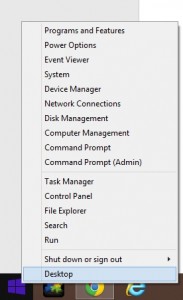
Start Menu
The most common complaints about the original Windows 8 release related to its elimination of the familiar Start button and Start Menu. As a result, simple tasks like restarting your computer and finding your installed software became a chore.
With the new Windows 8.1 update, this problem has been eliminated.
The start button has returned to its familiar, bottom-left corner of the screen. It can be toggled to switch between the desktop and Start Screens. Right-clicking brings up a menu with numerous familiar options allowing you to access your programs, task manager, Control Panel, and shut down functions.
As a result, Windows 8.1 will allow you to do everything you have always done in Windows, with the added bonus of the Start Screen, to be accessed as you may desire.
In all other regards, the updated Windows 8.1 interface is intuitive, sleek, user-friendly, fast and elegant.
As with any new computer initiation, installing software and importing files can be a bit time consuming. This problem was minimized for me by copying everything I needed from my XP to an external hard-drive, including my Downloads Folder (and all the software saved to it), which allowed for surprisingly quick transition and program re-installations.
I was up and running within an hour or two.
With more than 30% of the world’s computers still running XP and support now ended for this venerable old OS, there is likely to be a mass migration over the next few months to Windows 8.1 computers, as we retire our remaining, trusted XP workhorses.
I’m pleased to say that for me, this first transition has been a fairly simple and easy one.
So today’s tip: Windows 8.1 – try it, you’ll like it!
(And I’m still deciding whether I may attempt to salvage my still solid, but now obsolete XP computers by trying Linux – but that’s a whole other post for another day…)
– Garry J. Wise, Toronto (@wiselaw on Twitter)

Internet Archive – More Than Just the Wayback Machine

It may be a rare Slaw Tips reader who has not plugged a website URL into the Wayback Machine offered by the Internet Archive. We have mentioned Internet Archive in a couple of previous tips here and here.
Today’s tip is a reminder that Internet Archive is more … much, much, more than just an archive of the web. For a small slice of discovery, check out the Texts portion of this amazing collection. Did you know this collection has the 1906 Revised Statutes of Canada? It also has the RSC 1970.
There is a ton of cool and useful research material in this collection.
A Better Microphone Can Really Improve Your Online Calls, Podcasts or Music Recordings

It is a safe bet that the microphone on your desktop or laptop probably makes you sound like you are under water or in the next room most of the time. If you make a lot of call calls on Skype, regularly participate in Hangouts, or record music or podcasts, a decent can make a world of difference. 
Lifehacker has a great post that reviews the five of the most popular mics in the $100 price range, as voted by readers of that blog. I and many of my colleagues use one or more of the mics mentioned in this post. If you are thinking about getting a better mic, I guarantee that you will find one that suits your needs among the five listed in the post.
Going Paperless – Techshow Style
♫ There’s a bridge
I don’t know how to cross yet
I need your hand
To hold along the way..♫
Music and lyrics by: Tozer, Faye/lauper, Cyndi/pilsford, Jan/irn, Jasper, recorded by Steps.
 Since I am just recently back from ABA Techshow in Chicago which was held last week, I thought this blog post could be an amalgam of the sessions that touched on going paperless that I saw as well as the management issues that were raised in these sessions.
To start, there are “Three Key Steps to Paperless Success.” These are:
- Everything gets scanned
- You need protocols in place to make sure it gets done
- You (and everyone else) has to make time to do it
If you don’t scan everything, nothing else matters as the systems then start to break down.
There are three Scanning Methods that you can adopt:
- Centralized Scanning: This is suitable for large firms. Here you have one person or a team dedicated to the task, using large capacity scanners
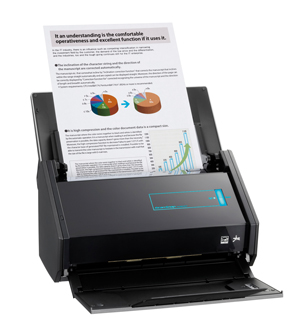
- Distributed Scanning: This is suitable for smaller firms, where everyone scans their own documents. Here you have staff that have multiple roles, including scanning. The King of Scanners for this method of scanning: The Fujitsu ScanSnap.
- Hybrid Scanning: This method is suitable for medium to larger firms. Here work groups scan their own documents, using a variety of scanners. Staff have greater familiarity with the types of documents being scanned as compared to Centralized Scanning.
Regarding the management process behind the decision to go paperless, the suggestions were:
• Create a paperless policy/plan (Hint: it doesn’t have to be on paper)
• Get a Commander in Chief: This person is empowered to make final decisions on the paperless process. This way you don’t end up with inconsistent policies and methods in the office.
• Have a detailed process for converting documents to paperless. Decide if you are going to do it in a centralized way (one big scanner, dedicated staff), a distributed way (paper is distributed to secretaries/staff for individual scanning) or a hybrid method as noted above.
• Develop guidelines for destroying documents. Do you do so immediately after scanning? After 7 days? 30 days? How much of a window do you give yourself just in case the scan didn’t work…
• Evaluate your hardware and software – is it adequate? Going paperless puts an additional strain on networks and resources. Chances are you will need to upgrade equipment and software.
• How much data will you need to store? Do you have sufficient server/storage/backup capacity? What happens when you start adding additional documents to the collection as time goes on?
• When will the paperless records be destroyed? Here the question is, how long do you retain the electronic records?
• Avoid haphazard document naming conventions. You will need a detailed and consistent protocol for naming files and folders if you are not adopting a DMS (document management system) such as NetDocs or Worldox or one of the DMS systems built into practice management systems such as Clio, Amicus Cloud, PCLaw, MyCase etc. Some people adopt document naming conventions even when they use a DMS so that the names of the files are consistent and tell a great deal about the document without opening it.
• You need to nail down the details. Paperless is not undertaken lightly or haphazardly.
• Watch out for unsecured data access due to devices with remote access capabilities such as cell phones being lost or stolen. Can you remotely revoke their ability to access the network?
• You need to ensure that your backups work properly and most importantly, that you can restore from a backup. Accordingly, test backups and restores frequently. Have a remote backup (cloud) as well as a local backup just in case your office is destroyed in a disaster.
• Have a monitoring system in place just in case. Check it frequently.
• Have a record retention plan as part of your backup system.
Once you have the management policies and procedures in place, here is a list of the hardware and software to think about to support your move to paperless:
• Scanners (the Fujitsu ScanSnap received rave reviews from every speaker. I can vouch for that – I have the iX1500 and it is a dream workhorse).
• Servers
• Back up devices/cloud/hardened hard drives (such as the ioSafe line of fireproof, waterproof, immersion proof USB hard drives and network storage devices).
• Multiple Monitors. The last couple of years at Techshow the recommendation was to go to two monitors. Now there are many who have gone to three or more monitors.
• Computers
• Shredders
• Copiers
• Fax machines (or increasingly, electronic fax)
• Printers
• PDF software (Adobe standard or professional, not just the reader) is a cornerstone to the move to a paperless practice. Adobe Standard comes bundled with the iX1500 and you can pay for the upgrade to Professional if you wish. Very cost-effective way of getting a scanner and the Adobe software. Nuance has just announced as an alternative to Adobe PDF software.
• OCR (optically character recognition) is a necessity for all documents coming into the paperless system. Without an OCR version of a document, you can’t search the text behind the scan. OCRing produces a ‘dual layer’ PDF – one layer is the image of the document (like a photograph) and the other layer is the text that is shown in the image. You can read the image layer but a computer can not – it can only search the OCR’d text. and Omnipage are two applications that can OCR a document. The ScanSnap has the ability to scan (both sides at once) and OCR a document all at once.
• Get a DMS (document management system) to go paperless. A DMS will handle email + attachments rather than trying to do so by rolling your own system. Just using a file/folder naming convention tends to break down quickly. A DMS will keep everyone in line!
• Make sure your scanner works with your DMS.
• ScannerPro will turn your iPad into a scanner for $2.99 (for use in a pinch).
Hopefully these management and hardware/software tips will help you cross the bridge to a paperless office…
-David J. Bilinsky, Vancouver, BC.
Watch the Law Library Blog
The Law Society of Saskatchewan has a new blog.
“Legal Sourcery” helps you navigate through the jumble of legal resources. Follow us for useful legal research tricks, interesting legal research news and what’s happening at the Library.
Law library blogs offer research tips, highlights of the specific resources they have to offer, and interesting polls.
Law libraries in many jurisdictions and from many library types have blogs. Check out the Legal Research & Law Libraries Blogs category at lawblogs.ca.
If you like the posts from Legal Sourcery, come to Winnipeg May 25-28 for the Canadian Association of Law Libraries annual conference. I guarantee you will have an opportunity to meet Melanie Hodges Neufeld, Director of Legal Resources, Law Society of Saskatchewan and Legal Sourcery blogger.
Be a YouTube Power User With These Keyboard Shortcuts
Most people wouldn’t think of using keyboard shortcuts as they watch videos on YouTube. However, there are actually several really helpful YouTube keyboard shortcuts that everyone should know and use.
First, while watching a video, remember that you can pause it by pressing the Spacebar once. Press the Spacebar again to make the video play.

Second, you can increase or decrease the volume by, respectively, pressing the Up or Down keys.
Third, the Left and Right arrows will let you, respectively, rewind or fast forward through a video.
Lastly, the Home key will take back to the beginning of a video, and the End key will jump you to the end.
One small pointer for making these keyboard shortcuts work – the YouTube video must have the focus, or in other words, be the active object on your screen. You make this happen by clicking once on the window that YouTube appears in.
10 Tips for Protecting Your Firm Against Cybercriminals That Target Lawyers
Thanks largely the excellent work being done at Avoid a Claim blog by LawPro, Ontario lawyers’ professional liability insurer, we now receive ongoing updates about cybercrime, and in particular, criminal efforts to target law firms and steal from lawyers’ bank accounts.
A post last week by Tim Lemieux provided a splendid, nuts and bolts roadmap on the steps fraudsters took to steal several hundred thousands of dollars from a law firm trust account. It all began with a phishing email that duped a firm’s unwitting bookkeeper into providing its bank account numbers by telephone directly to the bad guys.
So the cybercrime problem is here and well documented. The question is how do we react and protect ourselves?
Let me offer these tips:
1. Ensure that only one staff member within your firm is authorized to communicate with your firm’s bank. If bank
enquiries are received via anybody else, these enquiries should be directed to the firm’s sole, authorized bank liaison person.
2. The person authorized as your bank liaison person should be instructed to immediately seek guidance from the supervising lawyer prior to responding to any unusual bank-related enquiry.
3. Educate your staff about phishing emails and why they should never be responded to. Inform your staff and associates that enquiries from banks rarely will come from unknown persons or unsigned emails. Bank enquiries are almost never general or generic. They tend to be about specific transactions, and due to privacy legislation and regulation, will virtually never be sent to anyone other than the firm’s authorized bank liaison person.
4. Use your phone’s call display to verify the identity of any unfamiliar caller purporting to be from your bank. Unless the incoming phone number coincides with your bank branch’s phone numbers, take a message, obtain a return number, contact your branch to report the call and verify the caller’s bona fides. Only then, if safe and appropriate, should you call back to address the unfamiliar caller’s enquiry.
5. Do a training session in your firm about the kinds of frauds that law firms now need to worry about and protect themselves against. Talk about examples in the press and on Avoid a Claim . Give your staff and lawyers the information they need to know to protect the firm’s bank accounts.
6. Ask your staff if they have ever received any suspicious calls or emails related to the firm ‘s banking. Be proactive about informing yourself on whether your firm has already possibly been targeted.
7. Instruct your bank to contact your liaison person for confirmation prior to releasing any funds via wire transfer from your account. Put it in writing. Ensure that your instructions are specifically noted on your Bank’s customer and account records.
8. Discuss this concern with your bank. Ask your bank for its advice on best practices to avoid victimization.
9. Ensure that all firm computers have up to date, working anti-virus and anti-malware software, and that such software is set to conduct daily scans to detect keyloggers and other malicious software that could be scooping confidential information from your network.
10. Stay informed. Fraudsters’ tactics will continue to evolve, and yesterday’s scam is unlikely to be tomorrow’s. Regularly read Avoid a Claim for updates on current risks and dangers.
– Garry J. Wise, Toronto (@wiselaw on Twitter)
Use 3rd Party Sites
I absolutely love resources like legisalture and parliament websites that offer details about current and historical legislation and it’s progress. I also love government websites that offer the full text of various government publications. Sometimes those sites don’t offer the quick way to exactly what you need.
Today’s Tip: Don’t be afraid to use 3rd party collections of things rather than their original source.
Think about all of the Open Data initiatives – open data websites collect from a variety of sources into a clearinghouse website. Like a library but without a decent reference desk – great for experienced gatherers who know what they are looking for though. I recently peeked at openparliament.ca which is an excellent umbrella search tool.
Computers Running Windows XP SP3 or Office 2003 Must Be Updated Immediately
I have , but nothing like a pending deadline to spur the procrastinators amongst us into action…
As of April 8, 2014, Microsoft will cease supporting Windows XP SP3 (Service Pack 3) and Office 2003 (SP3). After this date there will be no new security updates, non-security hotfixes, free or paid assisted support options or online technical content updates from Microsoft for either of these products. Your computer will still operate and Office 2003 programs will  still run, but if you continue to use Windows XP or Office 2003, you will be more vulnerable to security risks including harmful viruses, spyware, and other malicious software which can steal your personal information or destroy your data.
Microsoft Security Essentials, Microsoft’s anti-malware program, will not be available for download on Windows XP after April 8, 2014. But, if you already have Microsoft Security Essentials installed, you will continue to receive anti-malware signature updates through July 14, 2015. Similarly, Microsoft’s Malicious Software Removal Tool works in conjunction with the company’s anti-malware engines and signatures, and as such the removal tool will continue to be provided for Windows XP through July 14, 2015. Despite these continuing updates, PCs running Windows XP or Office 2003 after April 8, 2014 should not be considered to be properly protected from malware.
As support is ending as of April 8, 2014, you should immediately take steps to update all law firm and home computers running Windows XP SP3, and upgrade to a newer version of Office on any computer running Office 2003. You can download and run the to check if your current PC meets the system requirements for Windows 7 or 8.1. If your current PC meets the system requirements, you can buy Windows 7 Professional or Windows 8.1 Pro from a local retailer so you can upgrade your computer. If your PC does not meet system requirements, you will need to purchase a new computer.
Cyber criminals and hackers will specifically be targeting computers that are running XP and Office 2003. The time and expense you will incur if your systems are compromised will be far greater than the cost of purchasing a new computer or updating Office. Please immediately take steps to update any computers running Windows XP or Office 2003. The clock is ticking down.
Wake Up and Live!
♫ Wake up and live, y’all!
(Wake up and live) Wake up and live now!
You see, one – one cocoa full a basket,
Whey they use you live big today: tomorrow you buried in-a casket…♫
Lyrics and music by Bob Marley, Anthony Davis, recorded by Bob Marley and The Wailers.

This post is being written up in Whistler BC while on a spring-break ski trip. Garry sent me an email that he will be off to Jamaica this week to lie under a palm tree. Whether it be snow or sand that calls to you, the important thing is to heed that call and take the break from your routine and live big today!
Get away — often. It’s a fact: People who take vacations have lower stress and a less risk of heart disease — not to mention a better outlook on life and more motivation to achieve goals.
Need more motivation? Psychology Today in an article entitled “The importance of vacations to our physical and mental health” says:
Chronic stress takes its toll in part on our body’s ability to resist infection, maintain vital functions, and even ability to avoid injury. When you’re stressed out and tired, you are more likely to become ill, your arteries take a beating, and you’re more likely to have an accident. Your sleep will suffer, you won’t digest your food as well, and even the genetic material in the cells of your body may start to become altered in a bad way. Mentally, not only do you become more irritable, depressed, and anxious, but your memory will become worse and you’ll make poorer decisions. You’ll also be less fun to be with, causing you to become more isolated, lonely, and depressed.
So there are multiple reasons for taking that break!
Psychology Today goes even further:
In a 2009 study, Canadian researchers Joudrey and Wallace reported that “active” leisure pursuits (such as golf!) and taking vacations helped to buffer or ameliorate the job stress among a sample of almost 900 lawyers.
Advantage Behavioural Healthcare says in regards to vacations:
Relationships are enriched
Spending time together enriches a marriage, which strengthens the family foundation. Through traditions and rituals, such as vacations, any relationship can be enriched. Vacations and other traditions make memories and are the glue that binds us. Vacation can provide an opportunity to talk with one another, learn new skills or discover new interests.
It is not just the taking of the vacation that has benefits. The WebMD goes further:
Even better, the biggest boost in happiness comes from planning the vacation. You can feel the effects up to 8 weeks prior to your trip. And when you’re done with that retreat, start planning the next one. Simply having something to look forward to can be rewarding.
I can hardly wait to start planning the next ski break! Wake up and live now!
-David J. Bilinsky, Whistler BC.


