







All Our Tips
Native Law Centre Case Watch

Each month, the University of Saskatchewan’s Native Law Centre blog features a Case Watch. The Case Watch is a newsletter of digested aboriginal case law. It covers all aspects of aboriginal case law including title, rights and Gladue factors. It is a collaboration of the Native Law Centre and Pro Bono Students Canada – University of Saskatchewan Chapter.
If you are a practitioner of aboriginal law or you closely follow this area of law, we strongly encourage you to check out Case Watch!
[This tip by Alan Kilpatrick originally appeared on the Law Society of Saskatchewan Library’s Legal Sourcery Blog]

Hyphens and Dashes
The word hyphen comes from the Greek for together, which reflects the hyphen’s function as a connector. Dash is descriptive: it’s a bold stroke of punctuation, which can hive things off from each other as well as connect otherwise disparate elements.
The hyphen as connector
English, like German, likes to combine two or more words into one. The Germans just shove them all together, stringing a series of words into one long chain (Rindfleischetikettierungsüberwachungsaufgabenübertragungsgesetz apparently being the longest; it means ‘beef-labelling supervision duties delegation law’, formerly in the statute book of the German state of Mecklenburg-Vorpommern, but now since repealed).
In English, the tendency is to hyphenate compounds, at least initially. When people started to talk about holders of shares a lot, it made sense to make a compound: share-holder. Later (as often happens), the hyphen disappeared and left us with shareholder. Hyphens are also disappearing from words like vice-president, but leaving two words (vice president) rather than one. Fowler’s Modern English Usage says this is actually OK – but doesn’t vice chair sound a bit naughty?
The hyphen tends to stay, however, where its disappearance would leave a pile-up of letters that don’t naturally go together in English or which suggest a weird pronunciation: security-holder and loop-hole are preferable to their hyphen-less versions. Co-operative is better than cooperative for that reason, but unco-operative does admittedly look a bit odd (and gets a red wavy line under it when typed on the screen – not that one should pay unquestioning heed to that). The New Yorker has tried for years to get people to write coöperative, but nobody is buying it.
Hyphens are usual in compound adjectives: pea-green boat, 20-year-old whisky, end-of-year review, red-hot chili peppers (a shame it’s too late to educate Anthony Kiedis about the hyphen). Not using a hyphen can lead to confusion: are you getting extra marital sex or extra-marital sex? Where the first element in a compound adjective is an adverb, the hyphen sometimes disappears: a well-deserved vacation BUT (probably) a soundly argued factum. The rules on that last point are murky; be guided by common-sense.
I’m of two minds about constructions like second- and third-hand information. Fowler’s Modern English Usage (the Bible for these things) suggests that the first hyphen can go (and may be better from a stylistic perspective than the alternative second-hand and third-hand information). There may be times when you’d want to keep it, though, for the sake of clarity: the meaning changes if you drop the first hyphen in This book is intended for the ill- and well-educated.
Another common use of the hyphen is for compound surnames. This used to be a posh thing, where the surname of a wife or relation was added in order to inherit that person’s property (the most elaborate example is Temple-Nugent-Brydges-Chandos-Grenville). It’s now an egalitarian thing, so kids get both their parents’ names. Sometimes the hyphen is omitted in these formations, which can lead to confusion: is that a middle name or part of the family name?
The dash
The dash has many uses, and as many—or more—misuses. Chief among the uses is to add a parenthetical phrase in the middle of a sentence, by way of explanation or for emphasis. If you hadn’t noticed, there is an example of in the opening sentence of this section. You can also do it at the end of a sentence, for emphasis—as I’ve just done now. Go easy, though: too much emphasis de-emphasises.
A bit of typography
The hyphen is one short stroke, like so: –
There are two types of dash: the ’em’ dash (—)and the ‘en’ (–), so-called by printers because they are the length of the bits of metal type used for printing the letters M and N respectively. (They are also called the long and the short dash.)
For purists, the en dash is used to separate date ranges (1837–1901) and connected or contrasted pairs of words (the North–South divide). The em dash is reserved for breaks in sentences. There should be no space on either side of a dash.
In the days of the manual typewriter, the em dash was rendered with three hyphens (—), the en with two (–). Typography nerds decry the continuation of this practice in the digital era, but you may have to resort to the ‘special characters’ menu to get the em dash, or figure out some combination of option and shift keys (which eludes me). In common usage, most people use a hyphen for date ranges and word-pairs, an en dash for sentence-breaks (your computer will generally convert two hyphens into the latter).
Next: who and whom
Adding Personal Notes to Outlook Email Messages

A question I have been asked numerous times is how to add personal notes, annotations, additional information or comments to an email that you have sent or received. There are numerous imperfect ways to add notes to email messages received or sent but no perfect method. For now, we can only pick one or two imperfect workarounds and hope that Microsoft will some day add this as a feature. There are third party plugins that facilitate adding notes to mail messages, but for this article I will limit the scope to Microsoft Office products.
Below are a few options you can try. I have used all of these at one time or another and I have eventually eliminated all but the last. The Outlook versions I use are Office 365 and Outlook 2010, but all options below should work with Outlook 2013 as well.
Use the custom flag box as a note field
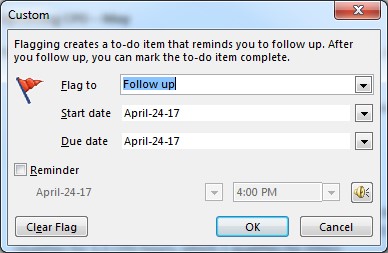
I have used this workaround for a while but abandoned it because the note is limited to 255 characters, is not formattable, and is difficult to spot since it is wedged between the subject and the start/completion date and reply date. In addition, the notes entered in the “Flag to” box are not searchable.
Here’s how:
- Right click on the flag of the message on the message list column
- Select “Custom”
- Type your notes in the “Flag to” box
Forward the email to yourself
Forward the email to yourself and you can add lengthy notes and even attachments and links. This works well if the email thread is not too long. If the thread is long, your notes will be scattered over multiple forwarded emails. Using the subject line to help organize the “note messages” helps somewhat, but if the thread involves multiple recipients and lasts for more than a few weeks, it can get messy quickly, especially if you get lots of emails on a daily basis. So this is a feasible option but high-maintenance nonetheless.
Use the subject line
You can change or add to the subject line. Again, this will only work for short notes as you are limited to 255 characters, including spaces and punctuation.
Here’s how:
- Double click to open the email (you cannot change the subject in the preview pane)
- Type your notes in the subject box. You can type over the original subject or add your notes before or after the original subject.
Create a custom column
Again, this only works for short notes, even shorter than using the subject line or a custom flag. And being mildly anal retentive, I do not like the note column messing up the list column, even less than not eating my Smarties in colour order.
Here’s how:
- Right click on the header row (where it says “All | Unread | Mentions…” if you haven’t changed the default) on the list column.
- Select “View Settings…”, then “Columns…”, then “New Column…”.
- Name your column and move your new column up or down to where you want it to appear. Usually it is easier to spot and read the notes if it is the first column. Click “OK” to save.
- Next you have to change the settings so you can enter notes in the new column. Go to “View Settings…” again and click “Other Settings…”
- In the “Other Settings…” box, check the box marked “Allow in-cell editing”. Click “OK”. Now you can type in the new column. You are limited to 70 characters, including spaces and punctuation.
- To adjust the display width of the column, go to “View Settings…”, then “Format Columns” and “Specific width”. The maximum characters you can choose is 50.
Use Outlook Notes
It baffles me to no end why Microsoft would create a Notes feature in Outlook and yet stop short of providing a way to bind a note to a message in the Inbox or Sent box. That said, Outlook Notes is a handy utility to keep your personal notes on various matters and can certainly be used to keep simple notes on emails as long as you enter enough information in the note so you can locate the emails if you need to re-read, reply or forward the messages. Notes are searchable, sortable, and colour-coded, but the contents are not formattable since it is a plain old text file.
Here’s how:
- Click the icon with 3 dots on the bottom of the Navigation Column (also referred to as Folder column) in Outlook and click “Notes”.
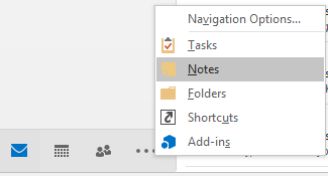
- Click “New Note”.
- A yellow sticky note window will open up. You can drag the corner of the sticky note window to enlarge the window. To change the colour of the sticky note, click the note symbol on the top left corner and choose “Category”. You can also change the colour and category anytime after the note is created by clicking the note icon in either the icon view of list view.
- Type your note in the window. The first line will appear as the subject of the note so it is a good practice to create a meaningful short title. When you finish typing, click away from the sticky note window and your note will be automatically saved.
- You can sort your sticky notes by subject, date created, or the category.
Save to OneNote
I save the best for last. Using OneNote is by far my favourite way to add notes to email. This works especially well for lengthy threads in which you need to add personal notes at different stages. Since the notes are kept in OneNote, you have great flexibility in organization using OneNote’s architecture: Notebook, Section, and Page. You can add links, attachments, insert screen captures, hand-drawn pictures, embed video and audio clips, and create checklists. You can also share your notes (or not) with other OneNote users, invite collaboration, or export the notes to PDF or Microsoft Word and share by email if needed.
OneNote is a powerful note-keeping application in the Microsoft Office family. It can do a lot more than keeping notes for email. But that is for another blog post.
Here’s how:
- Select the email you want to save to OneNote, click the OneNote icon on the “Move” section of the ribbon.
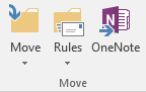
- You have the option of choosing which Notebooks and Section you want the email to be saved to. For example, you can have an Emails Section in a Notebook created for a specific project. Sections appear as tabs in a Notebook, and each email you save will be a new page under the Emails tab.
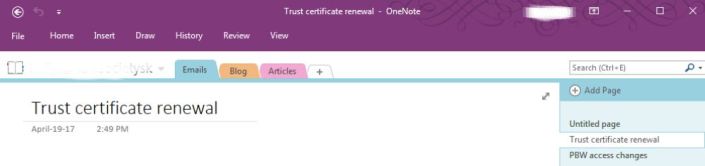
- OneNote will open automatically to the page with your entire email saved fulltext. Here you can add your notes, links, attachments, etc.
- The one thing I find missing is a link back to the email, in case I need to reply or forward the email. To add a link back to the Outlook email, open Outlook and OneNote side by side, drag and drop the email from Outlook’s item list to OneNote. It is as simple as that. You can drag as many email links to one page as you want. So you can use one page to keep track of an entire thread of emails and make notes pertinent to each email in the thread.
These are just a few different methods I have tried. I am sure there are other workarounds—such as using a simple Word document. It is just a matter of finding one that work best for your own workflow and habits.
[This tip originally appeared on the Law Society of Saskatchewan Library’s Legal Sourcery Blog]
Tax Tips for Legal Professionals

It’s tax time and the definition of insanity is to keep doing the same thing and expecting different results. Do you feel that you are paying to much taxes but only complain to your accountant when its tax time? A better approach to to be proactive.
Check out tips to help you stay on top of next years taxes:
IDENTIFY HOW MUCH TAXES YOU ARE PAYING – AND BE PROACTIVE ABOUT REDUCING IT
- Don’t wait until tax time. Contact your accountant early in the year
- Have your tax bill forecasted in advance to identify potential tax reduction opportunities
- Set aside funds for the tax bill as income comes into the business
- Stay on top of business versus personal expenses with your bookeeper. Use a credit card that is dedicated to business expenses to ensure you are receiving all of your deductions and to audit proof your expenses
- Pay your quarterly tax and HST bill on time to avoid penalties
TAX TIPS FOR PARTNERS AND EMPLOYEES IN FIRMS
- Ensure that your firm is taxing you properly based on regular income and bonuses received
- Consider making an RRSP contribution with any bonus income to reduce taxes to bonus and regular income
- If your making RRSP contributions on your own, let your employer know, so they can reduce your taxes at source and you won’t have to wait until tax time for the refund on your contribution
- Determine if your firm can attribute some of your income to a lower income spouse
TAKE ADVANTAGE OF PROGRAMS TO REDUCE TAXES
- If you are self employed discuss incorporating with your Accountant
- Many firms are starting to let partners incorporate as well. Determine if this is a viable option for you.
- Look at maxing out your RRSP, TFSA room, especially if you’re a high income earner.
- Explore investments that provide tax efficient income at retirement. These include TFSA’s, T Series investments, Universal Life Plans and corporate class investments to name a few.
- If you are self employed consider a private health plan to reduce taxes paid on income for medical expenses.
- Determine if you are a candidate for an individual pension plan in order to maximize savings for retirement and reduce taxes
—Jackie Porter (@askjackieporter)
Limit Your Search to Digests and Headnotes
The trouble with using keywords when searching case law case law is that you can end up with a lot of false hits, particularly in situations where your search terms have multiple meanings or are commonly used. One solution is to limit your search to digests or headnotes. When you search digests or headnotes, it increases the probability that your search terms will return a relevant case. Limiting your search to a specific category of cases (e.g. bankruptcy and insolvency) is also a good way to reduce the number of false hits.
Are You Avoiding Succession Planning?
Lots of baby boomers are avoiding succession planning. One can only assume that at least some of them are lawyers!
So, for today’s tip, I’ll give you 5 good reasons to stop procrastinating:
- Proactively planning for succession allows you to minimize the risk of having to deal with it in crisis mode, should you decide to retire earlier than expected.
- It takes time to develop a thorough succession plan.
- It may take longer than you expect to implement your succession plan. So, you will want to pad projections for training, mentoring and hiring, in case things don’t go as planned.
- Taking action will stop your looming retirement from being a negative weight in the back of your mind. Avoiding it doesn’t, necessarily, mean that you’re not thinking about it.
- You will have a better chance of keeping your most talented individuals, if you tell them long in advance that this opportunity is coming their way.
You don’t have to retire any earlier than you would like, just because you’re working on a succession plan. If you love working, you can build the opportunity to have continuity with your job (in some capacity) into your succession plan.
So, instead of avoiding your succession plan, think about applying the same degree of professionalism to this exercise as you would, and do, with everything else in your practice.
You may even be able to sleep better knowing this is in the works… as often happens when procrastinating something big finally comes to an end!
—
For reading related to succession planning, see these past articles on SlawTips:
Also, see the following articles by Sandra Bekhor at Toronto Marketing Blog:
- Statistics on Small Business Succession Planning
- Succession Planning Resource
- Setting the stage for a business retreat
‘Only’, the Lonely
I wish people would think about the placement of the single word only. Where it falls in your sentence can have a crucial effect on meaning. Only feels lonely because it’s often in the wrong place at the wrong time, misused and misunderstood.
Consider these examples (devised by James Forrest, emeritus professor, Department of English, U. of Alberta):
He only told her that he loved her
He told only her that he loved her
He told her only that he loved her
He told her that only he loved her
He told her that he only loved her
He told her that he loved only her
He told her that he loved her only
In speech and casual writing, we don’t always place only so carefully. In more formal writing – and certainly in transactional drafting – misplacement can lead to ambiguity and confusion.
For this reason, Richard Wydick calls only a ‘troublesome modifier’.
To avoid problems with only, place it immediately before the word you want to modify (as in the Forrest examples), or isolate it at the end or beginning of a sentence.
Examples adapted from Wydick’s Plain English for Lawyers, 5th ed. (2005)) follow.
Ambiguous: The lessee shall use the vessel only for recreation.
Clear: The lessee must use the vessel for recreation only.
Ambiguous: Shares are sold to the public only by the parent corporation.
Clear: Only the parent corporation sells shares to the public.
Where contractual certainty is not at stake, you can be a bit less careful (and H.W. Fowler warns in Modern English Usage against excessive pedantry on this point), but you still run the risk of conveying a slightly different meaning than intended.
Next week: hyphens and dashes
Prepare Yourself to Be More Human
In the old working model, being less human—less attuned to interactions and emotional issues—was often a competitive advantage. Messy human stuff needlessly complicated matters. But the AI revolution will reward those who are more human in their approach to services involving high value consultation and collaboration.
How long will it be before robots learn people skills? Although there have been significant advances since the development of computer-based therapists several decades ago, humans have a solid head start that we need to exploit.
Gary Klein is a research psychologist known for his pioneering work in how people make high stakes decisions under uncertain, complex conditions. When he studied such experts as firefighters, pilots and NICU nurses, he found they were adept at rapidly drawing on experience, as well as noticing things that others don’t. Rather than observing a mechanistic, linear process of information analysis leading to the selection of a rational solution, he saw a more human process at work.
Klein’s best known book, Sources of Power: How People Make Decisions was written almost twenty years ago. Yet this work has growing relevancy as we ponder the evolving nature of work. What skills should we honing and what work will be taken off our hands by technology?
Let’s begin with the three qualities Klein recently identified that humans possess in contrast to AI:
- “Frontier thinking” which he describes as “working in new areas and imagining new consequences.”
- Social networking which means “knowing who to ask for help.”
- Responsibility. “Humans take responsibility for their decisions, AI doesn’t.”
In light of his hypothesis, our tip for today is: prepare yourself to be more human by honing skills related to collaboration, consultation and problem prevention. These will be the enduring differentiators.
A good place to start is by taking advantage of a group coaching method that accelerates expertise in people skills. Active learning (vs. passive learning) is designed to help us extract more know-how from every situation—both positive and negative. To keep up with the demand for people who are more human, we can develop a mindset for harvesting insight from our daily experience.
—Sharon VanderKaay, Twitter: @svkaay
Database Video Tutorials
The Law Society of Saskatchewan Library team has created a series of helpful tutorial videos to aid legal researchers in searching CanLII and the Saskatchewan Cases Search. You can watch the videos by clicking on the Library Tutorials button on the left side of the library homepage.
The short digestible videos demonstrate how to search each resource in key ways:
- A Basic “How-To” (5:57) [embedded above]
- Searching for a Case with a Common Name (3:08)
- Noting Up a Case with CanLII (2:22)
- Searching for Case Law (2:04)
- Searching for Legislation (2:44)
Saskatchewan Cases Search Tutorial Videos
- What is the Saskatchewan Cases Search? (1:46)
- Finding a Particular Case (2:32)
- Finding a Case of Unknown Name (2:39)
- Noting Up a Case (2:45)
- Noting Up a Statute (4:56)
[The original version of this tip by Alan Kilpatrick originally appeared on the Law Society of Saskatchewan Library’s Legal Sourcery Blog]
Can Lawyers Benefit From Business Coaching?
Think about all the aspects of your job that you weren’t trained for.
Delegating
Managing people
Priority management
Developing job descriptions
Interviewing
Performance management
Leadership
Business planning
Retreats
Marketing
How much of your day is spent on this list and other such functions? How much of your energy does it take to learn and do it all?
Can you assess the impact on your success as a professional, and even on your very quality of life, if you were to improve in any of these areas, by say 20%? 30%? 40%? What about improvements to multiple areas?
You see where I’m going with this.
Just as with any other professional development undertaking, coaching makes you better at your job.
Coaching teaches you to tap into your own knowledge about your profession, your clients and your staff and actively generate real insight about how to overcome hurdles and maximize opportunities.
How could that not translate into benefit for lawyers?
—
For reading related to business coaching, see these past articles on SlawTips:
Also, see the following articles by Sandra Bekhor at Toronto Marketing Blog:
- Stop taking back what you delegate!
- Business coaching vs consulting – What’s the difference?
- Proper delegation builds partnerships – practice management tips


