







All Our Tips
Guidance for the Reluctant Legal Blogger

In the distant past, lawyers used to send printed client updates by mail. Those days are long gone. Then came e-mail, rapidly reaching the saturation point.
You don’t want to clog up your clients’ email in-boxes more than you need to, so push things their way through a brief and punchy blog post.
Blog posts can be published on your firm’s public website and also distributed to a phenomenally big audience through aggregators of online content like Lexology, Mondaq and JD Supra.
Novice blogger? Fear not: here are some tips.
Don’t write about the law; write about how the law affects the people you serve
- Why should the reader care about this information?
A good way to think about blog writing is to consider it a proxy for speaking
- If you were asked about a particular topic in an elevator, what would you tell the person in 30 seconds?
To be engaging, your blog post should do some or all of the following:
- educate, inspire or entertain
- not be boring – no one wants a tedious and overly technical piece with dozens of footnotes
- have a specific client (or type of client) in mind
- share and initiate a conversation
- introduce why the reader should read the post (online content is judged largely by its headline, especially when readers usually see a list of headlines in their feeds)
- provide quick, practical information on how the content affects the reader
- make the reader want to ask you for further information
Blog-writing is a way of sharing your personality
- Take a look at this piece: http://www.jdsupra.com/legalnews/ghostbusters-compensation-and-compliance-99019/. A bit longer than it could be, but saved by its conversational tone, which lets you know who the author is through his writing style
- Here is another example: http://www.jdsupra.com/legalnews/do-change-orders-need-to-be-in-writing-53159/
Additional resources to help you:
- Top blog authors on JDSupra (http://www.jdsupra.com/readerschoice/2016/) – learn from people who do this well
- This JDSupra article, How One Simple Question Leads to 3 Months of Solid Writing Ideas for Attorney Bloggers, provides a quick and easy exercise to help you prepare and schedule topics
Next: euphemisms

Citing Case Law and Legislation
The 9th edition of the Canadian Guide to Uniform Legal Citation (better known as the McGill Guide) was published earlier this summer. The most important change was no longer requiring a parallel citation in addition to a neutral citation. While the guide tends to be the default for Canadian citation, several courts have slightly different citation requirements:
- The Alberta Queen’s Bench adopted the 7th edition of the McGill Guide with some minor changes as detailed in its Notice to the Profession, November 12, 2013.
- British Columbia’s Court of Appeal has also adopted the 7th edition of the McGill Guide with a number of changes as detailed in its Practice Directive dated May 30, 2013.
- Ontario’s Supreme Court of Justice outlined its requirements in a July 1, 2014 Practice Direction.
- Ontario’s Court of Appeal has issued a Reference Guide for Citation Practices at the Court of Appeal for Ontario.
- The Saskatchewan Court of Appeal, Court of Queen’s Bench and Provincial Court require citations conform to the Citation Guide for the Courts of Saskatchewan.
Minimize Email Triage Time

Imagine if your email system could look like this at the end of your day (presuming your inbox is empty):
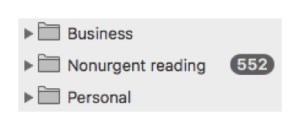
This is more likely to happen if email lands in the right folder without you having to triage it from your inbox. Dealing with each message in the order it was received in your inbox can lead to context switching — a major drag on productivity. The time spent doing triage can instead be used to handle business email.
To minimize email triage time, build these five email habits:
1. Set Up Folders in a Logical Manner
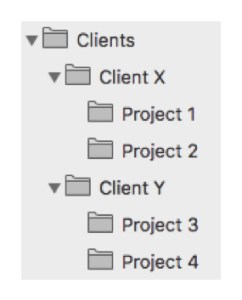
Having folders scattered all over means you mix contexts. And that makes you less able to target the messages that matter. Here’s how I set up my work email folders (and document folders, for that matter):
2. Put “Tags” in Email Subject Lines
Include the matter name or number in the subject line of each email you send. Use this habit for things outside client matters, too. You’ll understand why this is important when you read the next habit.
3. Create Rules to Automate the Filing of Incoming Messages
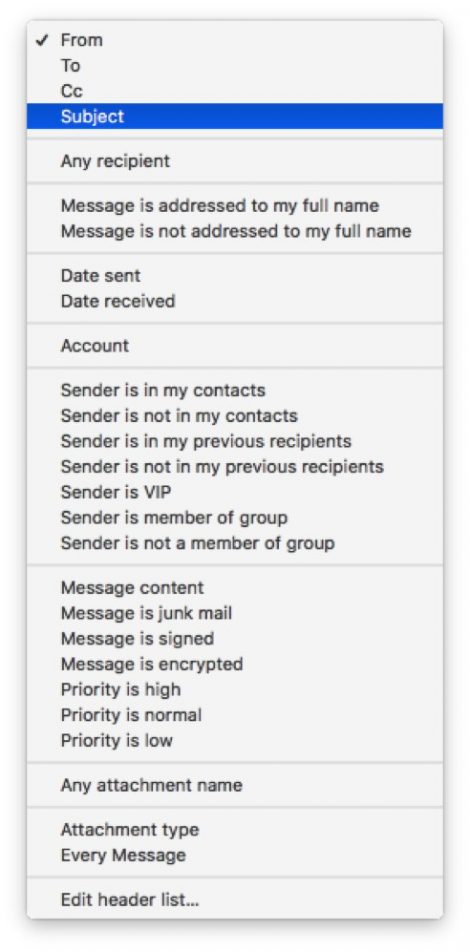
Rules are automatic actions your email program performs when triggered by criteria or conditions you have specified for incoming or outgoing messages. Email rules can be based on many criteria. Here’s a list from Mac Mail. The options in Microsoft Outlook and other email software are much the same.
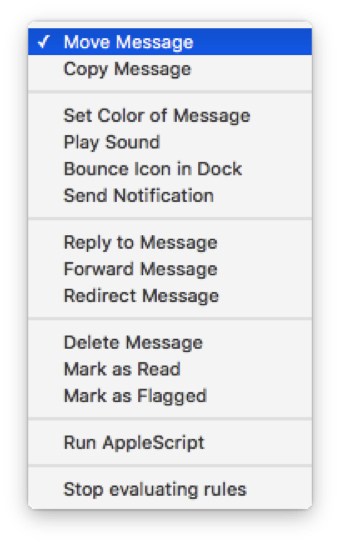
Here’s the Mac Mail list of actions the software can take when a message meets defined criteria. Again, other email systems feature similar lists.
All these options might make email rule creation seem daunting. It isn’t. Here’s the type of rule I suggest you set up:
If Subject Line contains “Project 1” move message to folder “Project 1.”
That’s it.
This rule works reliably well since few people bother to change subject lines during email correspondence. On the few occasions that correspondents do change the subject line and remove the “trigger text,” the email lands in your inbox. Get automatic filing back on track by changing the subject line when you reply.
By the way, each email rule needs a name. In this case, name the rule “Project 1.”
4. Create Rules for Other Types of Emails
In the same way that you want to direct business or client email to your business or client folders, you can have your email software file newsletters, family correspondence, news about networking events and other types of messages as they come in. This won’t happen all at once, of course. You’ll need to continually train this auto-file feature. If you stick with it, though, you’ll spend less time on email triage and more time focusing on your priorities.
5. Run Email Rules on Your Sent Items Folder
Messages you write can matter just as much as those you receive. That’s why you may want to file relevant messages you’ve sent into the right folders.
Once you’ve created rules, there’s an easy way to have them take effect on sent items. Go to the Sent items folder, select all messages, right-click (or Control-click), and run your email rules. If you haven’t visited your sent items folders in a few years (or ever) and they’ve piled up, sit back and let the process chug along. Once it’s done, your email will be much more organized.
Prevent Inbox Busywork
These email automation habits are powerful ways to prevent inbox busywork. As you work with rules, you can explore other ways they can automate tasks you commonly perform. But what matters is that you create the rules you need as soon as the need arises.
Do you have any favorite email automation tips? Please share them in the comments below.
—Luigi Benetton (@LuigiBenetton)
[This tip originally appeared on Attorney at Work]
Create CanLII Alerts
Did you know that you can receive instant notifications every time a new case is added to CanLII simply by subscribing to an RSS feed? Would you like to monitor all new decisions from a particular level of court or administrative tribunal? An RSS feed can do that for you.
RSS feeds deliver instant updates that inform you whenever a website is updated. In CanLII’s case, they will alert you whenever a new decision is posted.
Our colleagues at the Law Society of Manitoba Library have put together an excellent guide that describes how to Create an Alert with CanLII.
[This tip by Alan Kilpatrick originally appeared on the Law Society of Saskatchewan Library’s Legal Sourcery Blog]
Uncover Hidden Document Metadata
Each time an electronic document comes into being, metadata is created along with it. People often add their own, too. From the obvious (like page numbers) to the obscure (like dates of creation and author names), every piece of metadata serves some purpose.
During discovery, document metadata can prove just as important as the visible contents in the document. That’s why legal teams need to comb every document for metadata. (It’s also why many use metadata “scrubbers” on documents they share with other people.)
Things can get interesting when one legal team unwittingly sends documents to opposing counsel that contain metadata they weren’t aware of. The following tips cover some of the most common “accidental” metadata disclosures. These types of disclosures don’t always happen, but they’re worth checking for in files. And if you find such metadata, disclose your finds to opposing counsel. (Be sure to check for related ethics guidance in your jurisdiction; the American Bar Association has a handy resource for checking state metadata ethics opinions here.)
Turn on Track Changes in Microsoft Office Documents
Modern document revision often happens in the margins. Well, the right margin of Word documents. That’s where authors place comments and questions, each one labeled with their Office user ID. (The “Track Changes” feature can be called different things and be in different places in other types of documents.)
When authors choose to view a document in its “final” form, that margin and its notes disappear. Doing so means they might forget to get rid of Track Changes content before sending the document on to others. If that happens, that document will travel with all commentary and suggested additions and deletions. These threads can reveal deeper thinking behind a given document and offer hints to a legal team that wasn’t supposed to see those threads.
Check Document Properties
Ever wonder who the actual author of a document happens to be? How about when the document was created? If you’re checking a photo, was it ever opened using Photoshop? You can learn all this and more by checking a document’s properties.
Look for Hidden Rows and Columns in Spreadsheets
Sometimes an author will hide rows or columns to conceal information they contain. You won’t know until you unhide them.
Spotting hidden columns or rows should be straightforward. For instance, if one column is labeled F and the next one you see is J, that means three columns have been hidden.
Check Document Headers and Footers
From author names to Bates stamps to file paths, headers and footers can contain plenty of useful information.
For instance, sometimes authors redact documents by “cutting” them down once they reach the PDF stage. You may be holding a four-page document that says, in the bottom-right corner, “Page 7 of 19.” If you see something like this, you should go “hmm …”
Look for Speaker’s Notes in PowerPoint Documents
Sometimes presentation files contain entire scripts on crammed slides in fonts only bald eagles could read. And sometimes content is kept to a minimum, interspersed with tastefully chosen images that engage the audience.
That’s what the audience sees. What the audience doesn’t see is any speaker’s notes created in the spot reserved for such notes with each slide. Short of a video or audio recording of the presentation, this user-generated metadata may provide the most insight available into what was said.
Does a PDF Contain Redacted Parts?
If you receive a redacted PDF, try this:
- Select and copy redacted bits.
- Paste them into a text editor like Notepad, TextEdit or Microsoft Word.
If you don’t see anything “under” the redacted parts, the PDF’s creator knows how to redact a PDF properly.
But if all the creator did was draw black lines on top of the material to be redacted, those black lines don’t carry over when the material is pasted into a text editor. Who knows what fun stuff you might learn?
Mining for More
Expect disclosures such as the ones outlined here to become less frequent as more lawyers learn how to prevent them. That said, they haven’t all learned yet, so the above tips are certainly worth trying whenever you review electronic documents during discovery.
These aren’t the only ways to look for valuable metadata in documents. Did I neglect to mention your favorite tactics? Share them in the comments below.
—Luigi Benetton (@LuigiBenetton)
[This tip originally appeared on Attorney at Work]
Three Letters = One Powerful Question

Who?
Who could help me with this?
One of the biggest mistakes a lawyer can make is not asking for help.
Help can mean many things.
It can mean getting advice on a file. Many lawyers the mistake of going it alone, only to realize too late that turning to another lawyer for guidance would be the best course of action.
Help can be about forming a relationship with a senior lawyer in your practice area for support and guidance. I recently connected a junior lawyer seeking to develop a new practice area with a senior lawyer from a small firm. They are writing articles together now, and the senior lawyer is providing some valuable mentorship.
Sometimes help is getting external support on a practice challenge. It might be that you want to improve work efficiency, or you want to get better at business development, or you are wondering if it is time to make a transition to a different firm or practice. Whatever the challenge, getting confidential assistance is the quickest path forward. The Law Society practice advisors are there to answer your questions, and there are specialized lawyer coaches available to provide guidance.
Don’t go it alone. Whether it is simple advice on how to deal with managing clients expectations or a complex practice challenge, don’t take too long to get help. I frequently hear – I wish I had contacted you sooner – and I never hear I wish I hadn’t asked for help.
— Allison Wolf (@thelawyercoach)
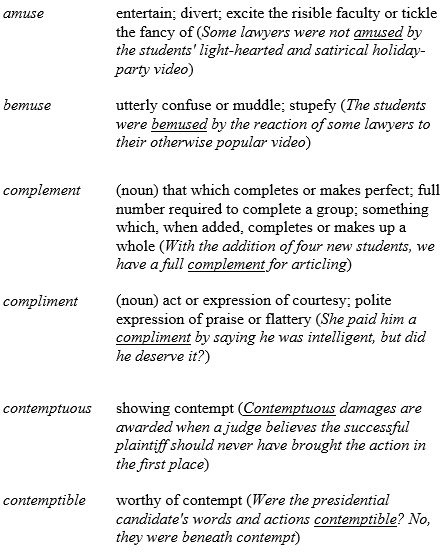
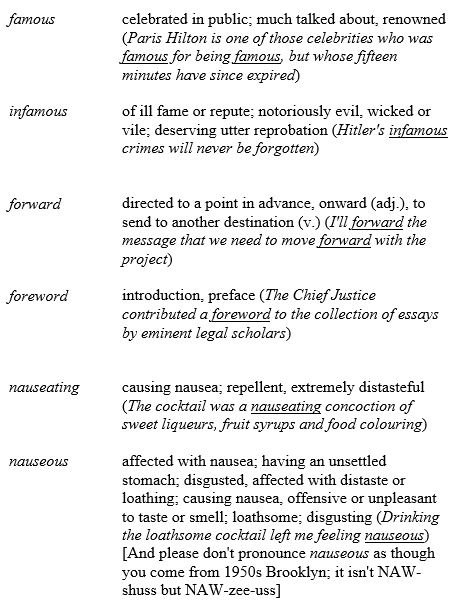
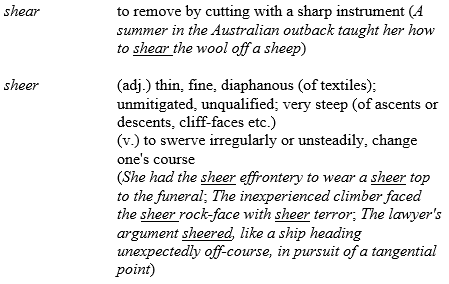
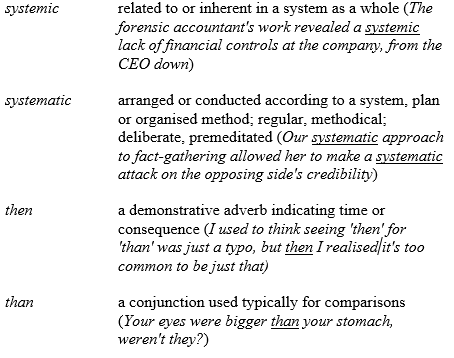
Confusing Pairs, Part 6
The latest in a continuing series.
Next time: guidance for the reluctant legal blogger
Sometimes You Have to Spend Money to Make Money
As a lawyer, you identify with being a professional. Strongly and consistently. Perhaps, not as much with being a business person (even if you play a leadership role at your firm)?
Most of the time, that’s just fine. Some of the time, it’s not.
If you don’t see yourself as a business person, not meeting practice goals can become frustrating:
- We used to get a steady stream of referrals. Where have they gone?
- We have a good reputation among our network. Why aren’t we receiving more resumes from talented recruits?
- We hired good people. Why isn’t morale higher?…
You may need help with marketing, leadership, operations, human resource management… But you may not be sure which issue is the most pressing. Or how to even get started. Do you need to embark on a planning exercise? Hire a consultant? Bring new skills in-house?
While it may be easier to simply focus on your work and your clients, good business people know that’s simply not enough. Sometimes, you need to spend money to make money.
So, this week’s tip is about remembering that you aren’t just a lawyer. You’re also, from time-to-time, a business person. And if your firm needs some assistance, it’s your job to investigate what, how and who can help. You don’t need to have the answers all of the time. You just need to find people that do, get through that initial learning curve and set up systems that will allow you to monitor… progress!
CAPS
Not hats: capital letters (or, in typographical parlance, upper case).
Don’t shout at people
When the interweb and e-mail were new, it took (some) people a while to figure out that typing your message all in caps is the typographical equivalent of shouting. Compare: please don’t forget to do this (gentle reminder) versus PLEASE DON’T FORGET TO DO THIS (angry, hectoring, perhaps a bit desperate, possibly crazy).
Used sparingly, capitals can be an effective way to express emphasis (especially if you’re not typing in HTML or rich text) – but the key word here is ‘sparingly’; if everything is emphasised, nothing is (the lawyer who cried ‘urgent’?). Or you look like you’re shouting.
Proper names
That is, names of persons and places (Beyoncé, Tennessee), which always take an initial capital – unless done for typographical (or other) effect (the writers e.e. cummings, bpNichol and bell hooks come to mind).
Sometimes proper names can lose their initial capital when they become disassociated with an actual place: you would not be wrong to write brussels sprout, french letter, french window, venetian blinds.
Titles
Old-fashioned usage is to go all out with capitals on these; it’s more modern to ease up (but I’m a fan of that officially capitalised T in Her Majesty The Queen).
When referring to a specific person by title, it may be better to use upper case: ‘Ladies and gentlemen, pleased welcome the Prime Minister of Canada!’
But when you’re using a job or other title as a generic description, the capitals can go: ‘When Sir John A. Macdonald was prime minister, there were less rigid rules about conflicts of interest’.
Similarly, it’s really not necessary to capitalise every routine instance of president, chair etc. Or words like state or province, unless you’re referring to the government of the jurisdiction in a legal or technical sense: He was born in the state of Alabama but The Province of Newfoundland and Labrador has issued bonds.
It is not (or perhaps that should be NOT) necessary to use an upper-case J every time you write the title judge or justice. Yes, Justice Abella; but There are nine justices of the Supreme Court of Canada and The judge gave brief oral reasons.
In the humanities and social sciences, capitals are disappearing from titles of books and articles (except for the first word and any proper names); it’s also generally regarded as better design to omit capitals in headings and headlines (the way I have in this tip up to this point). This may yet come to the law.
Abbreviations
Periods were once de rigueur but now may be omitted for a cleaner look: ABA, FWB, LCBO, NAFTA, MP, Mr, QC, UK, USA, WTF etc.
Capitals for Important Words
Please resist the temptation to slap a capital letter on a word as a form of emphasis: you run the risk of what was called, in an earlier GWWT, the Winnie-the-Pooh Effect (‘I have been I have been Foolish and Deluded … and I am a Bear of No Brain at All.’).
Next: confusing pairs, part 6
Use Sheet Shot Tools to Create Better Instructions
A picture is worth a thousand words, and pictures of your device’s screen are no exception. Those screen shot images can help people troubleshoot problems with your device — and help you better communicate how-to instructions as well.
Sometimes you will see people taking pictures of their device screens with their own (or other people’s) phones. Don’t do that. There’s an easier way. Instead, investigate your device’s built-in ability to take screen shots — also known as screen grabs or screen captures.
Types of Screen Captures
You can capture your device’s behavior in several different ways.
Static captures
These are simple “photos” that show your screen at the precise moment you “click the shutter” (that is, hit a keystroke or key combination, click a menu option or button, press a button). Most, if not all, computers and smartphones enable static captures out of the box.
Timed captures
Have you ever perched a camera on a tripod, hit a timer button and rushed into a group photo to be in the picture when the shutter activated? Most screen shot software offers this feature, too. It helps you bring up menus, dialogs and other graphical elements that may not appear in a static screen shot.
Video captures
Sometimes the behavior you want to show can’t be effectively captured by one static shot or a sequence of shots. That’s when you need to record a video of what happens on your screen.
Built-in Screen Shot Tools
Smartphones and tablets usually enable screen shots. For instance, on any iOS device, press the power and home buttons simultaneously. The screen flashes, the device emits the sound of a camera shutter and the picture is saved in the Photos app.
Both Windows and Mac computers ship with built-in tools. In Windows, it’s called the Snipping Tool, and on a Mac, it’s called Grab. Both Windows and Mac also feature default keystroke combinations that let you capture a segment of a screen, the whole screen or a specific window, without starting up an app.
Annotating Captures
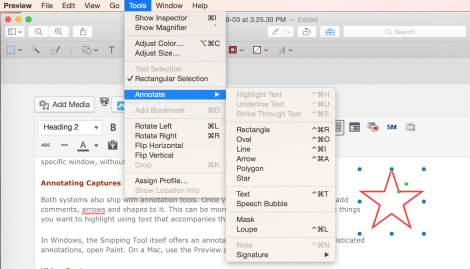
Both systems also ship with annotation tools. Once you take a screen shot, you can add comments, arrows and shapes to it. This can be more effective than pointing out the things you want to highlight using text that accompanies the screen shot.
In Windows, the Snipping Tool itself offers an annotation interface. To do more sophisticated annotations, open Paint. On a Mac, use the Preview app. (The screen shot below shows Preview’s Annotate menu.)
Video Captures
The Mac also ships with QuickTime, which lets you perform elementary video screen capture. The Xbox app in Windows features a screen video recorder as well.
Note: Video files get large quickly, so consider using a file-sharing tool instead of email, or posting the video to a video-sharing site like YouTube.
Third-Party Screen Capture Options
I’ve used a variety of paid tools to capture software behavior to insert into documentation and, to a lesser extent, to report bugs.
Sometimes these tools enable better manipulation of screen shots than software included with the computer. They automate parts of the workflow. When you take upward of 100 screen shots a day, you appreciate having the software handle sizing, file types, file locations and other mundane chores associated with each shot.
For static and timed shots, I’ve often used Snagit ($49.95). When it comes to producing screen video that I want to narrate, Camtasia ($199) is a better option than QuickTime. TechSmith makes both tools, which range from $49 to $199 and come bundled for $224.
These paid programs don’t cost much compared to the efficiency they provide, but most legal professionals don’t need to take screen shots every day. The tools embedded in modern computing devices meet most people’s screen capture needs.
Do you have a favorite screen capture tool? Please share your tip in the comments below.
—Luigi Benetton (@LuigiBenetton)
This tip originally appeared on AttorneyAtWork.com.


