






All Our Tips
Remove Formatting From Copied Text

Researching articles. Writing school assignments. Quoting other people in blog posts. During each activity, I usually cut text from one document and paste it into another.
The resulting text may make sense, but it often ends up looking like a ransom note, with different sections of text cut out of the headlines of various magazines and newspapers. That’s because the original publishers of the source texts use their own formatting, which can make words appear in different colours, fonts, sizes and so forth.
This isn’t a good look. Fortunately, there are several ways to prevent this problem from happening. Here are two.
Use a web browser’s address bar
I sometimes copy text from a document and paste it into my browser’s address bar to search for that text. Recently, I read a tip about how the address bar strips formatting from any text pasted in it.
So I tried this experiment.
- Copy all the text from a seven-page PDF. This document uses formatting that’s distinct from the formatting of my target document.
- Paste that seven pages of text into my browser’s address bar.
- Select all (from the Edit menu or the keyboard shortcut, which appears in the Edit menu).
- Copy the text.
- Paste the text into my document.
Voilà! The text gets pasted, stripped of formatting. You may need to separate paragraphs and sentences, but you won’t need to reformat anything.
Paste and Match Style
Safari, the browser I used in the experiment above, has an option in the Edit menu called “Paste and Match Style.”
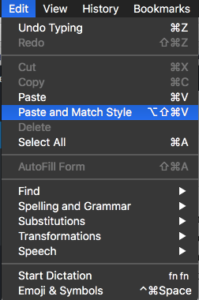
This option appears in many programs that handle text. It might also be called “Paste and Match Formatting.” In older software, it might be hidden in the “Paste Special…” option.
Options like these save me plenty of time when I want to write a document that not only reads well, but looks good.
Do you use any time-saving tactics when you create a document using pieces of other documents? Please share them in the comments below.
—Luigi Benetton (@LuigiBenetton)
[This tip originally appeared on luigibenetton.com]

Bad HR Jargon

We’ve covered bad business jargon in this space, but other fields of endeavour are guilty of polluting the language with their specialist lingo.
Human resources (itself a piece of HR jargon; it used to be personnel or, in a more sexist age, manpower) comes to mind. Here are some examples of HR jargon to avoid; there are many more.
Diverse
Americans often refer to a diverse attorney when they want to describe a lawyer (as we would typically say in Canada) from a background that is other than white, male, straight, middle class. But in a room full of brown lesbian barristers, there is no diversity (at least on the basis of race, sexual orientation or area of practice). We are diverse only in relation to others and collectively.
What the adjective means in diverse lawyers is, less concisely but more accurately, historically disadvantaged or underrepresented in the legal profession. That’s a bit of a mouthful, so perhaps diverse in this context serves a purpose.
But I still don’t like its imprecision.
Feedback
Originally, feed-back; and used to describe the return of electrical output from one segment of a circuit or amplifier to an earlier stage of input – like the feedback from the speakers when you’re rocking out on an electric guitar.
From about the 1940s, the word began to be applied metaphorically to a response to any kind of process, often in relation to the kind of behavioural conditioning associated with the American psychologist B.F. Skinner.
More recently, and in HR-speak, feedback has come to mean commentary on someone’s job performance.
Given the origins of the term in circuitry and behavioural science, where feedback is involuntary or automatic, rather than thoughtful or considered, its extension to performance reviews is somewhat unfortunate. Couldn’t we just ask for comments, views or a review? But this is a losing battle; feedback in its HR sense is here to stay.
Proactive
This is a recent coinage, much loved by those who give (but perhaps not receive) performance reviews.
It was invented as an opposite for reactive, a quality which is perceived as a weakness and in need of a forward-looking alternative (even though reacting is often all one can do when events are unforeseen or unforeseeable, as they often are).
Even those with foresight don’t proact, they simply act; and if one is both thinking ahead, one anticipates. Seen in a positive light, proactive means thoughtful or careful; more neutrally, merely fortunate in predicting an outcome (or in making it look as though one saw it coming).
Either way, proactive is overused HR jargon that is best avoided.
Team
This is another piece of weary HR-ese, with unpleasant overtones of organised fun, forced collegiality and top-down decision-making (Andrea and her team just makes me think it’s all about Andrea, somehow).
Or maybe I’m just not a team-player.
Refresh Your RSS Reader
 Today’s tip is part tech, part research. It’s a simple reminder to give a little love to your RSS reader.
(You ARE using an RSS reader, aren’t you? You’re not? Here’s a nice primer on why RSS is more important than ever in 2018.)
Whether you use Feedly, Inoreader, The Old Reader (my personal favourite) or something else, why not take a few minutes to check whether you’ve got any dead/defunct feeds among your subscriptions.
If a feed is dead or hasn’t updated in a really long time, does that mean the site is no longer publishing? Maybe the blog or news area got moved and the feed address changed, so you’re no longer getting updates from that site?
Investigate the source site and make sure you’re not missing anything you thought you were still getting.
While you’re at it, take a look at all your subscriptions and ask yourself whether each one is still useful to you.
Then ask yourself whether there are sites you’re NOT following, but could be. Do you have email subscriptions that could be replaced with RSS subscriptions, thereby reducing the email that accumulates in your inbox?
Lastly, consider whether upgrading your reader might be money well spent. Generally, paid accounts will let you subscribe to more feeds and give you more control over how you organize them, and for usually no more than the cost of a cup of coffee per month. Many readers give a choice of annual or monthly payment options.
Got a tested-and-true method for keeping your reader working optimally? Let me know in the comments!
Has an Act Come Into Force?
While some acts come into force on Royal Assent, many require Proclamation or an Order in Council to do so. A number of provinces publish tables that let you see if a specific act has been proclaimed.
Federal: Go to LEGISinfo, find your act and then click on the link for Coming into Force information. You can also check the Table of Public Statutes and Responsible Ministers which lists all the coming into force information for the consolidated version of an act.
Alberta: Check Recent Proclamations and the Alberta Gazette, Part I (use the Proclamations section of the Table of Contents to find a specific act).
British Columbia: Go to the Regulations Bulletins and look under “Acts in Force” on the Cumulative Regulations Bulletin. As with the Alberta Gazette, you will have to do this year by year.
Manitoba: http://web2.gov.mb.ca/laws/statutes/index_procs.php
Newfoundland and Labrador: http://www.assembly.nl.ca/legislation/sr/lists/Proclamation.htm
Nova Scotia: https://nslegislature.ca/legislation/proclamations-nova-scotia-statutes
Nunavut: You can find in force dates in the Table of Public Acts.
Ontario: https://www.ontario.ca/laws/proclamations
Prince Edward Island: You can find in force dates in the Table of Public Acts.
Quebec: http://legisquebec.gouv.qc.ca/en/content/eevlois
Saskatchewan: The Saskatchewan Gazette, Part I lists both acts proclaimed that year and acts still waiting to be proclaimed.
(My apologies to New Brunswick: I wasn’t able to find a table of in force dates.)
Use an Email Recall System That Actually Works
People who try to recall an email after they’ve sent it might think it’s a good idea to close the barn doors after the horses have all fled.
That bit of snark comes courtesy of email systems that boast “recall” tools. I tried the one in Microsoft Outlook about a decade ago. It didn’t work for me, and I dealt with the fallout from a misunderstanding.
So I switched tack. Now I prevent fallout from poorly worded emails so I don’t have to perform after-the-fact damage control.
How do I do that, you ask? Simple: I wait an hour or more between the time I draft an important email and the time I send it. Reading it with “fresh eyes” helps me prevent most (not all) email mistakes.
I don’t do this with all emails. Sometimes I send quick, innocuous-enough messages with no real review. Every now and then a typo seeps in. But when the message and the recipient matter (especially in business) and the topic merits deep thought, I slow down.
I regularly used two methods to help me make sure I send the thoughts I want to convey. Both involve preventing emails from being sent until I feel they’re ready.
Write the email offline
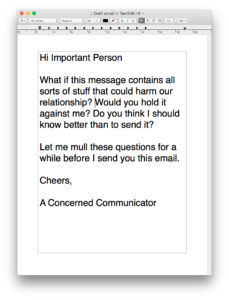
I often write messages in a text editor. We all have these on our computers. They come with names like Notepad (Windows), TextEdit (Mac) and Microsoft Word (both Windows and Mac). The beauty of text editors (sans plugins) is that they don’t have an easy-to-access Send feature. Just save the message and set it aside for later review and sending.
Delete all recipients in a reply
You can write a reply in an email as long as it has no email addresses in the To, cc or bcc lines. If these fields are empty, your email software can’t send the message anywhere. You can then save the message in the Drafts folder for later review. Note: some email programs don’t show the Drafts folder unless you have actually saved one or more drafts.
How do you keep yourself from landing in email-fueled hot water? Do you use email recall systems that work? Or have you become a maestro at smoothing ruffled feathers? Let me know in the comments below.
—Luigi Benetton (@LuigiBenetton)
[This tip originally appeared on luigibenetton.com]
The Case of the Disappearing Comma
LinkedIn helpfully provides readymade comments on the updates that your connections post there. If your colleague Luisa has a new job, you can just click on a button below her update to post an immediate Congrats Luisa.
That should be Congrats, Luisa, however. To get technical, this is a vocative construction that traditionally requires a comma before the name of the person being addressed. Similarly, it should be Thanks, Denis and Hello, Yolanda.
In modern professional correspondence by e-mail (or LinkedIn posting), the vocative comma is rarely seen. I suppose I can live with that in the era of Hi Neil as a salutation (and I am one who drops the (non-vocative) comma after Dear Sir or Madam and Yours truly – even in a formal letter).
There are times when the vocative comma is essential, however: I know Ali and I know, Ali mean different things (which should require no explanation).
On a related point, there is some ambiguity in placing the sign-off Thanks, John all on one line; only when the name appears below the Thanks is it clear that it means With thanks from John rather than Thank you to you, John (although actual confusion may not arise in practice).
Force PDFs to Download Instead of Load in Browser
Are there fillable PDF forms on your website?
When loaded within a browser, the fields in forms like these generally can’t be filled out – the PDF will need to be downloaded in order to be filled out.
Why not cut out a few extra steps for your site’s visitors, and make the PDF automatically download rather than load in-browser?
A hat tip to Gabriola Graphics for this super simple solution to do just that:
“All you have to do is add the word download to your <a> tag and if your browser supports it your visitor will get a Download Where? prompt.”
Gallop Portal
Did you know that the Gallop Portal (Government and Legislative Libraries Online Publications Portal) provides free and convenient access to almost 500,000 electronic government publications from all levels of Canadian government?
Launched five year ago by the Association of Parliamentary Libraries in Canada (APLIC), the portal is intended to provide Canadians with an easy way to access, connect, and interact with Canadian government resources. Canadian Legislative and Parliamentary libraries are mandated to provide access to government documents by the Federal government’s Depository Services Program.
APLIC describes the portal as a “one-stop access point” to government publications. Users can search for documents across jurisdiction and language using a variety of filtering options and a straightforward search interface. The portal provides particularly high ease of use compared to other Canadian government websites.
We encourage you to check the Gallop Portal out at gallopportal.ca.
[This tip by Alan Kilpatrick originally appeared on the Law Society of Saskatchewan Library’s Legal Sourcery Blog]
Corral Multiple Email Addresses Into One Email Client
Do you have two or more email addresses? Tired of flipping between web pages to check them all? Why bother. Instead, set them all up in one email client.
Here’s what this looks like on my computer.
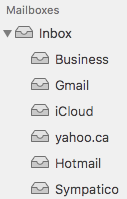
When I click “Inbox” I can see all inbox messages from the six accounts listed here. To focus on the contents of just one inbox, I click the name of that inbox.
Given how much time people still spend on email, this tactic ought to help save time. Also, I can file all my email in my own folders, offline, by having them come into a mail client.
The screen shot above shows how this looks in Mac Mail.app, but most email software lets you do this. I have this set up on my Mac, iPad and iPod Touch. (I don’t do this on my phone – long story – but I likely will when I eventually spring for an iPhone.) I could also create this setup in Microsoft Outlook and other email software.
There are other ways of doing this. For instance, you can have all email accounts but one forward messages to the one you want to use. The only shortcoming is that you would need to sign in to another address to reply from that address, if the original email wasn’t sent to your “main” address. (Switching addresses in software like Mac Mail is as easy as choosing the “from” address from a drop list.)
That said, email forwarding is a great way of keeping messages coming from addresses you eventually want to get rid of. Soon enough, the only messages going to that address will be spam.
Do you use multiple email addresses? How do you keep track of correspondence in each of them? Let us know in the comments below.
—Luigi Benetton (@LuigiBenetton)
[This tip originally appeared on luigibenetton.com]
Check Your Email – at Scheduled Times Only

I would hazard a guess that one of the very first things you do when you sit down at the office is check emails. Of the 5, 10, 50, or 100 emails you are reviewing, are any of them urgent? I suspect you already know what absolutely must be done on any given day. And if something is absolutely urgent, there’s a good chance your client has called you about it already. My tip here is to set aside a time (or times) to check your emails – and that time doesn’t have to be first thing in the morning. I’ve written about decision fatigue before, the cognitive bias that you have a limited tank of decisions per day. You may want to make sure your most important decisions are made at the beginning of the day while your tank is full. A better strategy is to get to work on the most important task of the day, or, as they say, “eat the frog”.
Suppose in the middle of the day you are working on a big memo, deep in thought. You notice a slight change in the background – you have a new email! You click over and start reading it. You have to make several decisions: is the email urgent, it is important, where to file it, what to do with it, when to do it. That’s a lot of decisions for each and every email. Studies have found that after an interruption it takes about 20 minutes to return to the same state of concentration and focus you had before.
With emails constantly coming in and interrupting your work day (let alone when you are not working!), turn off your notifications and stop the interruptions. Then take control of your emails by only looking at them at set times.


