All Our Technology Tips
Back Up Your Text Messages to Gmail With SMS Backup+
Some days, it feels like text messages are the new email. Texting is rapidly becoming just as common as email for business uses (and may well have surpassed email for personal uses), but are you as careful with preserving your texts as you are with your email?
Maybe you use text messaging for business purposes and want to make sure your messages can be retrieved if they are inadvertently deleted or if your phone is lost. Or maybe you find yourself needing to locate a message but unable to remember whether it was in a text or an email… and would rather not spend hours searching through both inboxes. (Or maybe, like me, you need to delete some old texts because there are so many that your texting app has become sluggish.)
Whatever the scenario, if you use texting with any regularity, you’ll probably be interested to know about an Android app called SMS Backup+.
SMS Backup+ automatically backs up your text messages into Gmail, which is extremely useful because not only are they preserved and safe, they are searchable. This app will back up SMS, MMS, and call logs into your Gmail and Google Calendar with a separate label. And as a bonus, you can also use it to restore messages to your phone.
Once downloaded, the app is very easy to get up and running. If you have a lot of texts to back up, it may take a while for them all to copy over, but that will just run in the background until it’s complete. Once installed and set to auto backup, your texts will be backed up and available in your Gmail account within moments of sending or receiving.
Posted on June 12th, 2018 - Editor: Emma Durand-Wood

—
Need Free Photos? Try Unsplash
Need an image for a poster, website, or social media post but don’t have a budget for stock or custom photography? Check out Unsplash, where thousands of photographers have generously made their photos available completely free for commercial or noncommercial purposes.

Simply type a keyword into the search bar and you’ll be presented with tons of photos that have been tagged with terms that match or are related to your search. The search function is pretty basic, but I’ve always been able to find what I need by getting creative with alternative search terms.
The site is very straightforward – you’ll see from this FAQ that using Unsplash is not complicated. Once you’ve downloaded an image, it’s yours to do whatever you like with it. There is no requirement to credit the photographer or the site, though it’s encouraged, and Unsplash has made it easy to do so with the “give credit” button that appears on every photo.
Do you have other favourite sites for high-quality, free photos? Please share in the comments.
Posted on June 5th, 2018 - Editor: Emma Durand-Wood
—
Use Canva for Easy, Eye-Catching (And Free) Infographics
You stare at a Word document full of dense text, nary a headline or bulleted list in sight. You aimlessly play with font sizes and faces and tables and margins, knowing you aren’t really making any progress. Not even clip art can save it. You’re doomed: the document is utterly, completely boring.
We’ve all been there, faced with this seemingly impossible task: to somehow transform pages of text into something people will actually read. (Or better yet, something people will actually WANT to read!)
The next time you find yourself in this unenviable position, I encourage you to check out a free, nifty online tool called Canva.
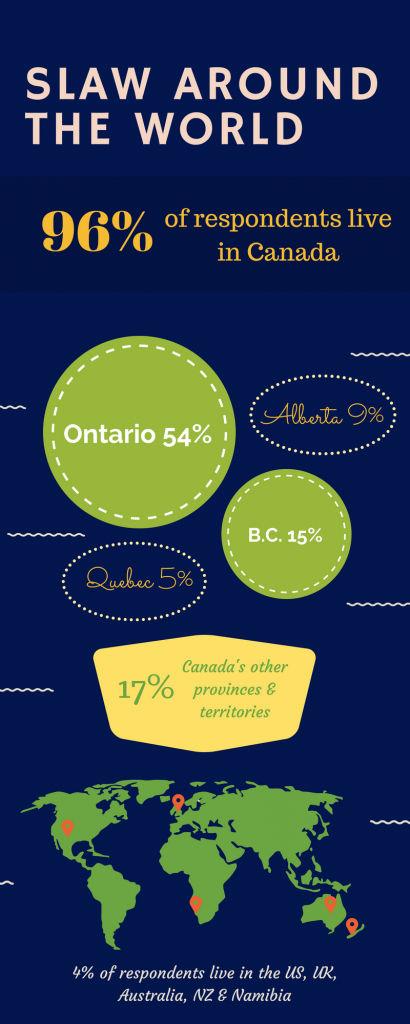
I discovered this tool while trying to turn the Slaw Reader Survey results (which began as a snooze-inducing “wall of text” of raw data) into something engaging and eye-catching that folks would be excited to read.
Here’s one of the infographics I created to show where Slaw readers live:
Canva has:
- tons of templates and backgrounds that you can customize with your own material (for this particular project, I used some templates almost “as is”, and started other infographics from scratch)
- a vast assortment of icons, images, typefaces, etc.
- a simple interface with helpful built-in rulers and guidelines
- good interactive tutorials to show you the ropes of the service
You can also use Canva for social media graphics, posts, presentation slides, and really any other graphic-based creation you can think of. I encourage you to try it out – not only will you come up with something aesthetically pleasing and useful, I bet you’ll have fun while you’re at it.
Posted on May 22nd, 2018 - Editor: Emma Durand-Wood
—
New Mandatory Minimum Sentencing Online Resource
Have you heard about MMS Watch? It’s a free mandatory minimum sentencing resource recently created by the experts behind Rangefindr – the popular criminal sentencing resource.
MMS Watch provides a list of every mandatory minimum sentence in force in the Criminal Code and the Controlled Drugs and Sentencing Act. Additional explanation appears on the website:
MMS.watch is an ongoing project by rangefindr.ca to monitor the constitutionality of each mandatory minimum sentence (MMS) in the Canadian Criminal Code and Controlled Drugs and Substances Act. All data are from the rangefindr.ca database. MMS.watch is free and will remain free.
We encourage you to check out MMS Watch! You can learn more from Matthew Oleynik’s guest post on Slaw.ca.
[This tip by Alan Kilpatrick originally appeared on the Law Society of Saskatchewan Library’s Legal Sourcery Blog]
Posted on May 8th, 2018 - Editor: Law Society of Saskatchewan Library
—
Need American Case Law? Try Google Scholar
Surprising as it may be, of the available free sources for American case law, there may be none better than Google Scholar.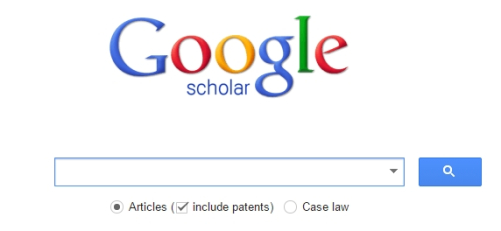
For starters, check out the main search screen – “Case law” is one of two main searches you can do (alongside “Articles). Once you have selected Case law, you get a list of higher-level courts for all 50 states, all Federal Court circuits, and of course, the U.S. Supreme Court.
From there, it is only a matter of constructing your google search. As always, be mindful of Operators, how to apply Filters, and generally good search practices.
To give you an idea of the depth of this database, I tried a search in just New York courts for the word “replevin” (my favourite unusual legal term) – and got 730 hits, including 96 from the 1960s, 78 from the 1950s, and four from the 1940s. The same search in CanLII (considered an excellent source for Canadian case law) returns 448 cases.
The site includes citator to see how the current case has been treated in courts, as well as cross-linking to cases cited in the document.
If there is a better free source for American case law, please comment below.
[This tip by Ken Fox originally appeared on the Law Society of Saskatchewan Library’s Legal Sourcery Blog]
Posted on April 10th, 2018 - Editor: Law Society of Saskatchewan Library
—
Irwin Law’s Canadian Online Legal Dictionary
Are you familiar with Irwin Law’s Canadian Online Legal Dictionary (COLD)? COLD is a free online legal dictionary and is composed of all the terms featured in the legal textbooks published by Irwin Law. COLD is described in more detail on Irwin Law’s website:
We are a collaborative dictionary comprised, initially, of terms defined in the glossaries of Canadian law books published by Irwin Law. The dictionary will be maintained by an Irwin Law editor. Members of the public are invited to submit new defined terms, edit existing terms and supply citations, sources and related terms — simply request to become a COLD contributor when you create your Irwin Law account. We look forward to receiving your submissions!
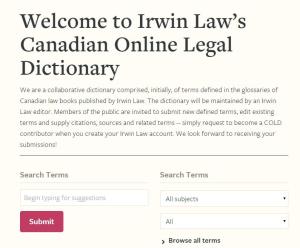
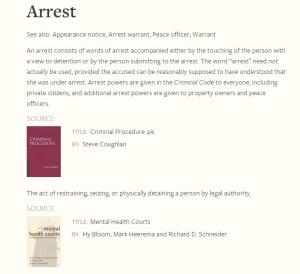
COLD can be searched by keyword or browsed by topic area. Searching COLD for a definition may lead to multiple definitions of the same term as COLD will highlight all of Irwin Law’s textbooks that have defined the term. For example searching for the term arrest will lead to two definitions as two separate Irwin Law texts, Criminal Procedure and Mental Health Courts, have defined the term:
I encourage you to check out this free resource. You can access COLD online at https://www.irwinlaw.com/cold. Let us know what you think about it.
[This tip by Alan Kilpatrick originally appeared on the Law Society of Saskatchewan Library’s Legal Sourcery Blog]
Posted on March 13th, 2018 - Editor: Law Society of Saskatchewan Library
—
More Tips on Using Microsoft Word
The most popular blog post on Legal Sourcery since our launch in 2014 is Cross-referencing footnotes in Word by Reché McKeague. This post has been read 11,012 times since posted on April 29, 2014. That’s an average of almost 400 times each month. Here are a few more interesting posts on Word tips and tricks from other law blogs:
5 Microsoft Word Tips to Make Lawyers’ Lives Easier (FindLaw)
Get the Most Out of Microsoft Word (American Bar Association, Law Practice Magazine)
Master Class: Microsoft Word Shortcuts for Lawyers (LexisNexis Business of Law Blog, video)
If you have already upgraded to, or considering upgrading to Office 365, here’s an article with useful tips:
15 Amazing Features in Office 365 That You Probably Don’t Know About (Business Insider)
[This tip originally appeared on the Law Society of Saskatchewan Library’s Legal Sourcery Blog]
Posted on February 27th, 2018 - Editor: Law Society of Saskatchewan Library
—
Canada Post Personal Vault
Do you need safe online storage for confidential information such as passwords, birth certificate, bank accounts, medical records, passports, tax returns, wills, insurance and other legal documents that you might need to access anytime, anywhere, or to share with your family members?
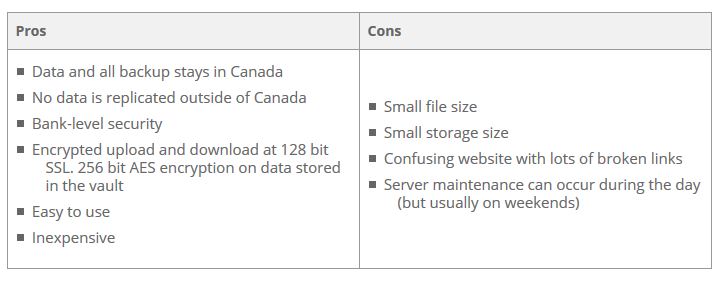
Canada Post has a Personal Vault service that provides bank-grade security and keeps your information on servers physically located in Canada. The Personal Vault is not meant to be cloud storage for your massive photo and movie collection but rather a secure place for your important personal, financial, medical information and your most valuable photos and videos. For this reason, file size is limited to 200KB each file and 3.5MB for photos and 10MB for videos. Picture this as an electronic safety deposit box, the contents of which you can access 24/7 whether you are at work, at home, or travelling.
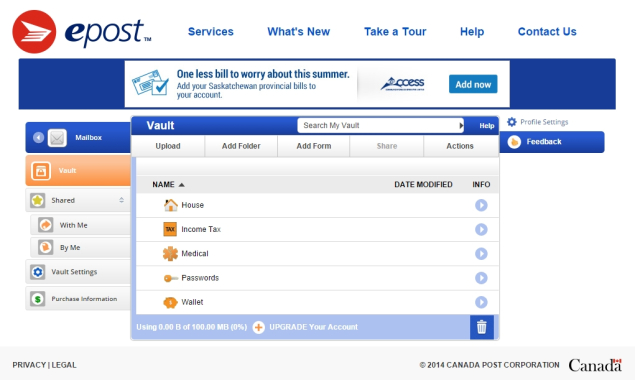
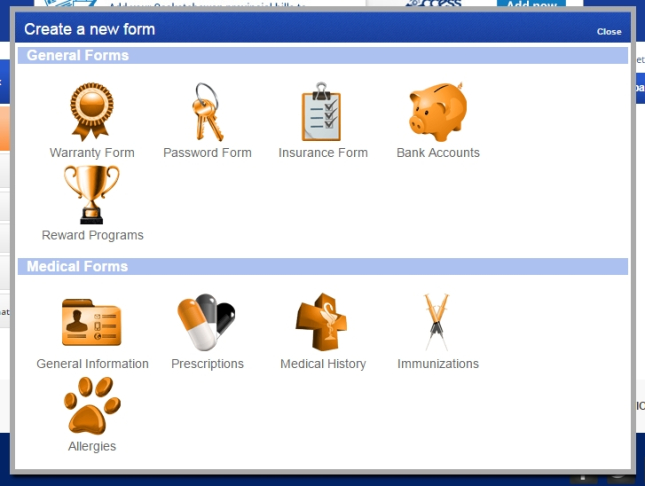
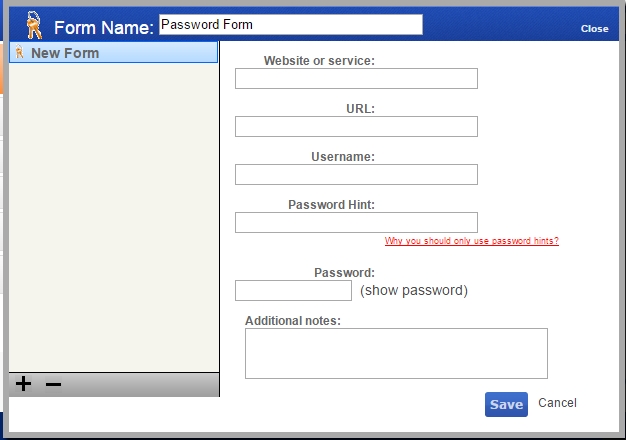
Setup is straight forward. All you need to do is to create an ePost account (if you don’t already have one), pick a Personal Vault Plan and sign in. You can upload your own files or use the provided forms to quickly enter information such as bank accounts, passwords, prescriptions, etc.
A trial account of 100MB storage is free for 90 days (500 documents, 28 photos, 10 videos). A Bronze account of 1GB storage is $23.95 a year (5,000 documents, 285 photos, 100 videos). Silver and Gold accounts are available if you require more storage space. Give it a try.
[This tip originally appeared on the Law Society of Saskatchewan Library’s Legal Sourcery Blog]
Posted on January 30th, 2018 - Editor: Law Society of Saskatchewan Library
—
CanLII’s Boolean Operators
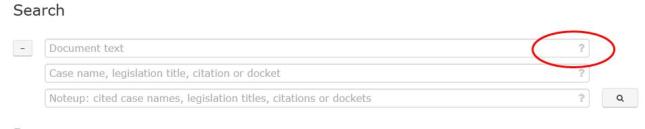
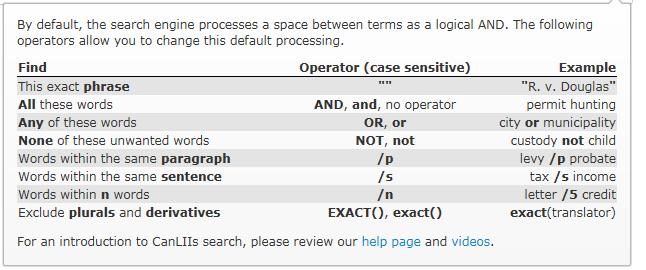
CanLII’s Boolean search commands are displayed in a pop-up box when the cursor is placed over the question mark icon to the right of the search interface:
This is crucial as every online database has its own unique set of Boolean search commands. For example, CanLII’s Boolean search commands differ significantly from those in the Saskatchewan Cases Database. It is always helpful to review a database’s Boolean search commands prior to searching.
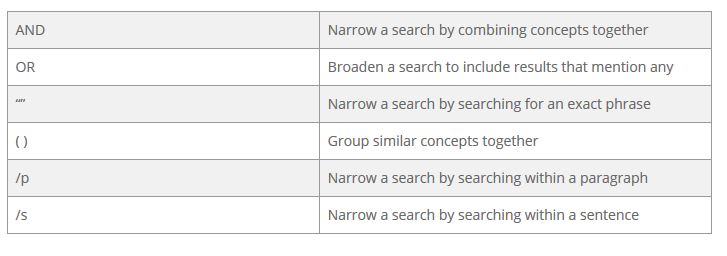
Boolean search commands help us search more effectively and efficiently. They can easily broaden or narrow a search by combining different concepts together. Six important Boolean search commands to note prior to searching CanLII are:
[This tip by Alan Kilpatrick originally appeared on the Law Society of Saskatchewan Library’s Legal Sourcery Blog]
Posted on January 16th, 2018 - Editor: Law Society of Saskatchewan Library
—
O’Brien’s Internet
If there’s one thing I’ve learned in eight years as a law librarian, it’s that every lawyer loves O’Brien’s Encyclopedia of Forms. And as the purpose of such an encyclopedia is to save you work in creating documents, it follows that you must like O’Brien’s Internet even more, as it provides the entire O’Brien’s collection of first draft legal forms as Word documents.
Do you use O’Brien’s Internet? If not, you probably should. Here are a few pointers in using our province-wide subscription.
First, to access O’Brien’s Internet, you need to get to the Members Section. If you don’t know your username or password, please contact the library immediately to get that straightened out.
The way I see it, there are two ways into our O’Brien’s subscription. You can browse the Table of Contents – it’s the tab at the far left:
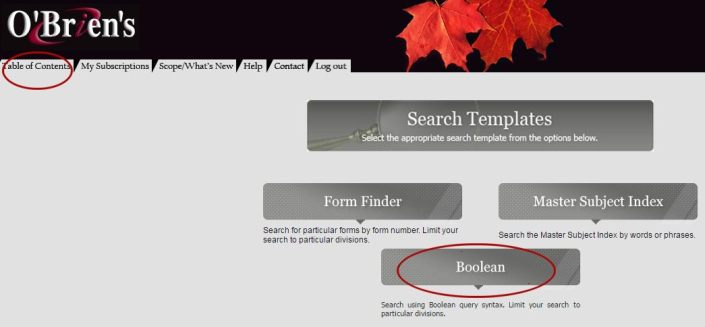
The Table of Contents is easy to use – just keep clicking on the little plus signs beside the most relevant headings, and eventually you’ll find lists of useful documents in the center pane.
Note that each of the main titles has both a TABLE OF CONTENTS and an INDEX – so if you don’t find what you are looking for browsing the contents, you might try looking for key terms in the A-Z indices.
In the screenshot above, you will also see three Search Templates. Our online subscription does not include the Master Subject Index. The Form Finder is useful when you know the number of the form you are looking for (possibly from looking at the print version).
But my preferred way of finding forms in O’Brien’s Internet is to use the “Boolean” search template, where you can find forms using search queries.
First, know your operators – the operators appear in a table just below the Boolean Search box. If you enter two or more terms with no operators between them, the search engine will look only for documents with both (or all) of your terms. You can also use “&” or the word “and.” The word “or” works as the OR operator, which searches for either of two or more synonymous terms, like “agriculture or farming” – but don’t use quote marks in your search unless you want to limit to an exact phrase, like “acceleration on default.” Use the asterisk (*) as your multiple character wildcard – for example, “arbitrat*” (without the quote marks) will call up documents including the words “arbitrate,” “arbitrator,” “arbitration,” etc. There are other operators, but those are the ones that I use most often.
Once you get your search results, you may want to refine your search or do some further browsing. Navigating O’Brien’s Internet is a lot easier if you learn how to use the row of buttons at the top of the central pane –

The first two buttons allow you to edit your search, or return from a document to your search results.
The fifth button from the left, the left-right arrows, allows you to “synchronize” your search results with the Table of Contents – this is very helpful if you find a useful document and want to see what other forms are around it in the encyclopedia’s contents. The “TOC” button beside it simply returns you to the Table of Contents afresh. Third from the right is a button that shows you the “path” to the current document, or the hierarchy of headings in the encyclopedia it falls under. The final two buttons on the right-hand side are for printing and saving, but my preference is to pull up the documents in Word, and use the printing and saving features there.
The Law Society’s subscription to O’Brien’s Internet covers the following divisions of O’Brien’s Encyclopedia:
- Division I – Commercial and General
- Division II – Corporations
- Division III – Leases
- Division V – Wills and Trusts
- Division VII – Labour Relations and Employment
- Division IX – Municipal Corporations
- Division X – Computers and Information Technology
If you are creating legal forms in any of those topic areas, you would do well to make friends with O’Brien’s Internet. For further information or research assistance, contact the library.
[This tip by Ken Fox originally appeared on the Law Society of Saskatchewan Library’s Legal Sourcery Blog]
Posted on December 19th, 2017 - Editor: Law Society of Saskatchewan Library
—