All Our Technology Tips
Canadian Public Weather Alerts Now Available on Google Public Alerts, Search, Maps and Now
Severe weather is a fact of life for Canadians. Thanks to Public Safety Canada, Environment Canada and Google, Google has just announced that Canadians can now receive warnings of drastic weather changes directly to their mobile devices and desktops.
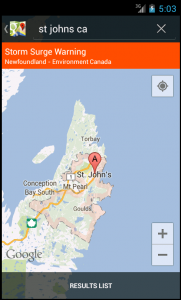
Severe weather notifications for Canada, in English and French, will now appear on the Google Public Alerts page, in Google Search and Google Maps on both desktop and mobile, and in Google Now.
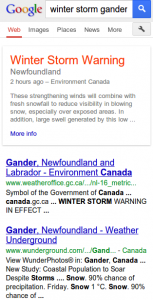
An alert will appear on your desktop or mobile screens when you search for relevant keywords such as flood or with location-based queries like Toronto. On Android devices running Google Now, alerts will appear automatically on Cards.
Here are example alerts in Canada surfaced on Search from a mobile device and Google Maps Mobile:
For more information, or to see all active public alerts, visit www.google.org/publicalerts.
Posted on April 23rd, 2013 - Editor: Dan Pinnington

—
Visit Factory-reset.com for Factory Reset Codes
When electronic devices work properly, you have no worries. But when they don’t, it’s a real pain in the rear! One of the most common trouble-shooting options is a factory reset – that special and specific combination of button presses and steps that  restarts the device with standard factory settings.
Finding the right reset code usually requires finding the operation manual for the device. Yeah right! It might be in somewhere in the basement, or more likely went out in the garbage with the crumpled holiday wrapping paper.
So what do you do when you need to find a factory reset code for a misbehaving device? A quick visit to Factory-Reset.com will get you the code you need. It has factory reset codes and procedures for many different types of devices and products. The best way to use this site is by searching the product code. You can however browse through the site by equipment type or by manufacturer. Also listed are lamp hour/counter reset procedures and V-Chip reset guides.
Posted on April 16th, 2013 - Editor: Dan Pinnington
—
How to Quickly Tell if a Site Is Down for Everyone or Just You
On many occasions, the frequent surfers among us will have struggled to view a website that  refuses to load. This raises a simple but profound question: “Is this website down for everyone or just for me?”
Now, you could call someone or send out an email asking if others are having the same experience. But, you might get a quicker response with a tweet. But even better yet, there is a humble website that will answer this important question: www.downforeveryoneorjustme.com.
What will they think of next?
Posted on April 9th, 2013 - Editor: Dan Pinnington
—
Why You Should Consider Banking at Two Banks or Financial Institutions
With purses or wallets full of debit and credit cards, and all sorts of options for electronic payments and web-based banking, most of us have moved away from being reliant on cash. And most of us do all our banking at single bank or credit union.
There are some benefits to doing your banking electronically, but there are also some hazards. One of those hazards if finding yourself in a pinch if your bank or financial institution’s computer systems go down. This doesn’t happen often, but it is not unheard of. Another possible hazard is having your bank account access hacked.
In both these cases you can find yourself scrambling to access funds and/or to regain access to your account. How do you prepare for and lessen the inconvenience of these rare but possible eventualities? Consider opening a second account at a different financial institution. After doing this, account access difficulties on one of your accounts won’t totally trip up your access to banking or some of your money.
Posted on April 2nd, 2013 - Editor: Dan Pinnington
—
Give Me My Old-Fashioned Windows’ Control Panel
While computer newbies may find the categorized Control Panel helpful for navigating the ever more complex configuration and appearance settings for Windows, more tech-inclined individuals may prefer the old version of Control Panel which displayed all items at once.
Getting to the old or “classic” view of 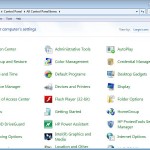 Control Panel is easy. In Windows XP or Vista, open the Control Panel and select Switch to Classic View. In Windows 7, click the View by drop-down menu in the upper-right corner and select your preferred display setting.
Am noticing there are a lot more options than there used to be…
Posted on March 26th, 2013 - Editor: Dan Pinnington
—
Preventing Auto-Sync on One-Off Basis for an iPad, iPod or iPhone
Most of time you want automatic sync to run when you plug your iPad, iPod or iPhone into your computer. Indeed, this is the default setting in iTunes for all three devices.
However, sometimes you just don’t want  to sync your iPad, iPod or iPhone when you connect it to your computer. Here is a simple trick to prevent aauto-sync from running on a one-off basis: With iTunes open, hold down Shift+Control on a PC or Command+Option on a Mac while plugging your device in. Doing this will make iTunes skip the automatic sync just once.
And note as well, you can prevent automatic syncing from running on a default basis for any specific iPod, iPhone, or iPad; or for all iPod, iPhone, or iPad devices you connect to your computer. See this Apple Support article for instructions on doing this.
Posted on March 19th, 2013 - Editor: Dan Pinnington
—
Don’t Embarrass Yourself: Read Before Retweeting
You can retweet something in an instant with just a few taps or clicks. Tap, tap and zoom – the RT goes to all your followers. You get a good feeling when you retweet something that your followers will enjoy or find really helpful.
But, what if the link in the retweet doesn’t exactly say what the tweet suggests it does? Or, what if the contents of the link make statements that you just don’t agree with? Or, what if the tweet suggests the link contains something really good, but it really is a few hollow statements making a weak sales pitch? Or, what if the link takes you to some NSFW (not-suitable-for work) content?
Oops! In each of these four scenarios you will have unhappy followers,
Remember that friends and strangers alike will judge by your words and retweeted links. The lesson is simple: always read the links in any tweet you intend to retweet.
And a bonus tip (addressing one of my biggest pet peaves): if you are going to tweet or retweet something that requires a registration or login, please explicitly state this is the case.
Tweet with care and caution!
Posted on March 12th, 2013 - Editor: Dan Pinnington
—
Helpful Keyboard Shortcuts for Navigating MS Outlook
Keeping your hands on the keyboard is always faster than reaching to the mouse for a few clicks. Here are some handy keyboard shortcuts for basic navigation in Microsoft Outlook:
- Switch to Mail: CTRL+1
- Switch to Calendar: CTRL+2
- Switch to Contacts: CTRL+3
- Switch to Tasks: CTRL+4
- Switch to Notes: CTRL+5
- Switch to Folder List in Navigation Pane: CTRL+6
- Switch to Shortcuts: CTRL+7
- Next item (with item open): CTRL+COMMA
- Previous item (with item open): CTRL+PERIOD
- Switch between the Folder List and the main Outlook window: F6 or CTRL+SHIFT+TAB
- Move among the Outlook window, the Navigation Pane, and the Reading Pane: TAB
- Move around within the Navigation Pane: Arrow keys
- Go to a different folder: CTRL+Y
- Expand/collapse a group (with a group selected) in the Navigation Pane: PLUS or MINUS SIGN on the numeric keypad
- Collapse/expand a group in the e-mail message list: Left and right arrow keys
Learn these shortcuts to quickly navigate around Outlook.
Posted on March 5th, 2013 - Editor: Dan Pinnington
—
For a Quick Exit Remember to Use the Escape Key
In the top left corner of most PC and Mac keyboards is the humble and underused Escape key. It is labelled Esc on PC keyboards and esc on Mac keyboards.
 On both PCs and Macs, pressing the Escape key usually cancels or aborts the current operation. To put it another way, the Escape key is the “get me outta here” option for many things. These include closing an open dialog box, getting rid of a button-less splash screen and closing a menu that you clicked on.
In most browsers, hitting the Escape key will stop a page from downloading. This is handy when a page has locked up or when it is downloading very slowly and you decide to go elsewhere.
Remember the Escape key next time you want to jump back a step.
Posted on February 26th, 2013 - Editor: Dan Pinnington
—
Use Alerts So You Are Never Late for an Appointment
Are you frequently late for meetings and appointments? “My lawyer made me wait” is an all too common client complaint. Being late all the time is something that will really annoy clients – and other lawyers too.
For those of you that get lost in the demands of a busy schedule, there is a simple trick you can use to avoid being late for things: When setting a meeting or appointment, remember to set a reminder or alert as well.
Most calendar programs have a feature that lets you add a reminder or alert to each meeting or appointment entry. This alert or reminder gives you an audible and/or visual reminder of the upcoming appointment at a pre-set time before the meeting.
When you create an appointment, set a reminder with an appropriate amount of time to allow for necessary preparations or travel time. If the meeting is in your office, five minutes could be sufficient. Or perhaps 30 minutes if you need some time to review documents to prepare for the meeting. If you have an appointment that is out of the office, create a reminder that factors in your travel time. These reminders will give you a helpful nudge so you are prepared and on time for you next appointment. These reminders will usually sync to the calendar on your smartphone as well.
Double-checking your reminders at the start of the day can help as well. You may need extra time to prepare for a meeting or for travel if there has been a snow storm.
Posted on February 19th, 2013 - Editor: Dan Pinnington
—